
Account & Users
For Brands
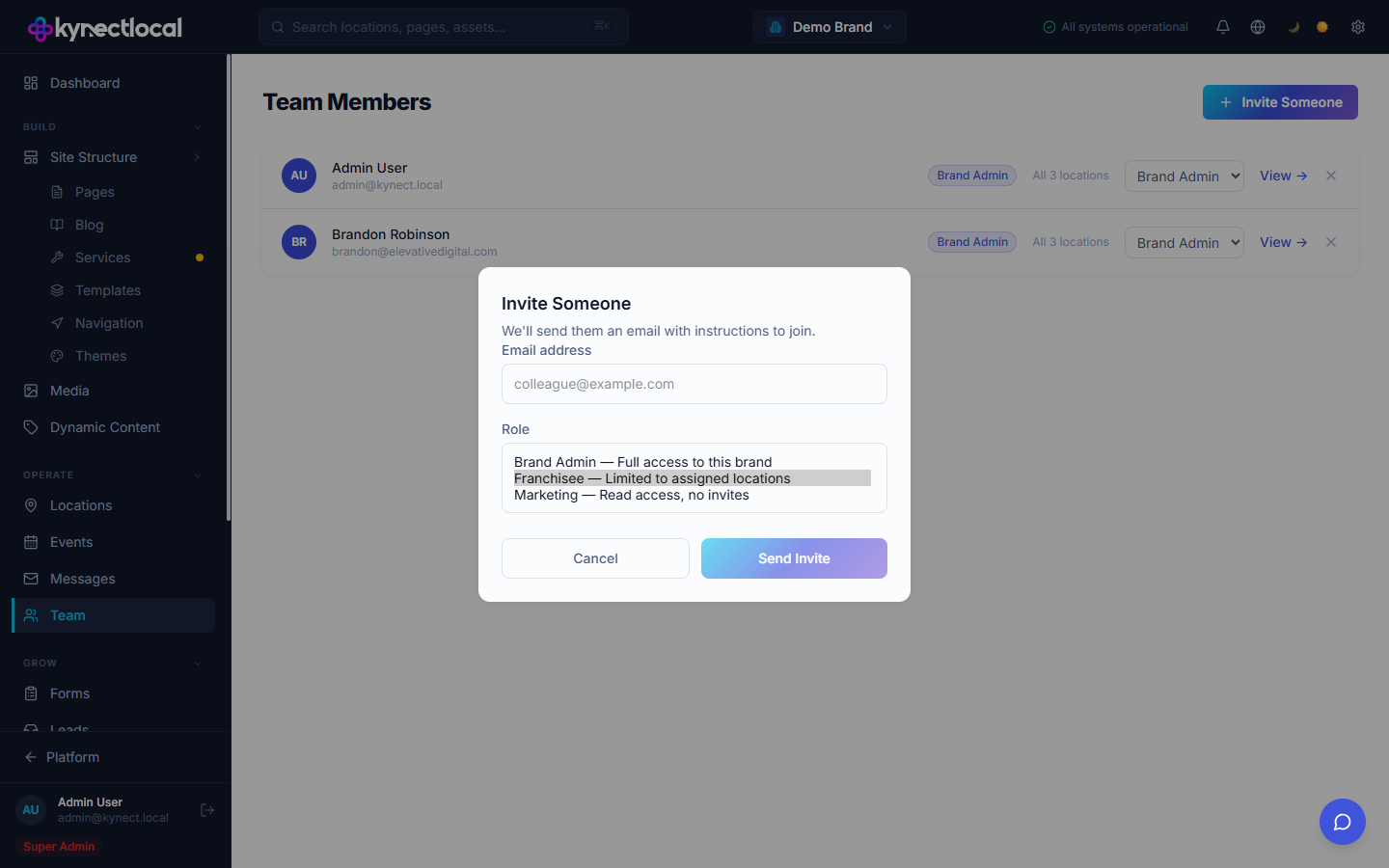
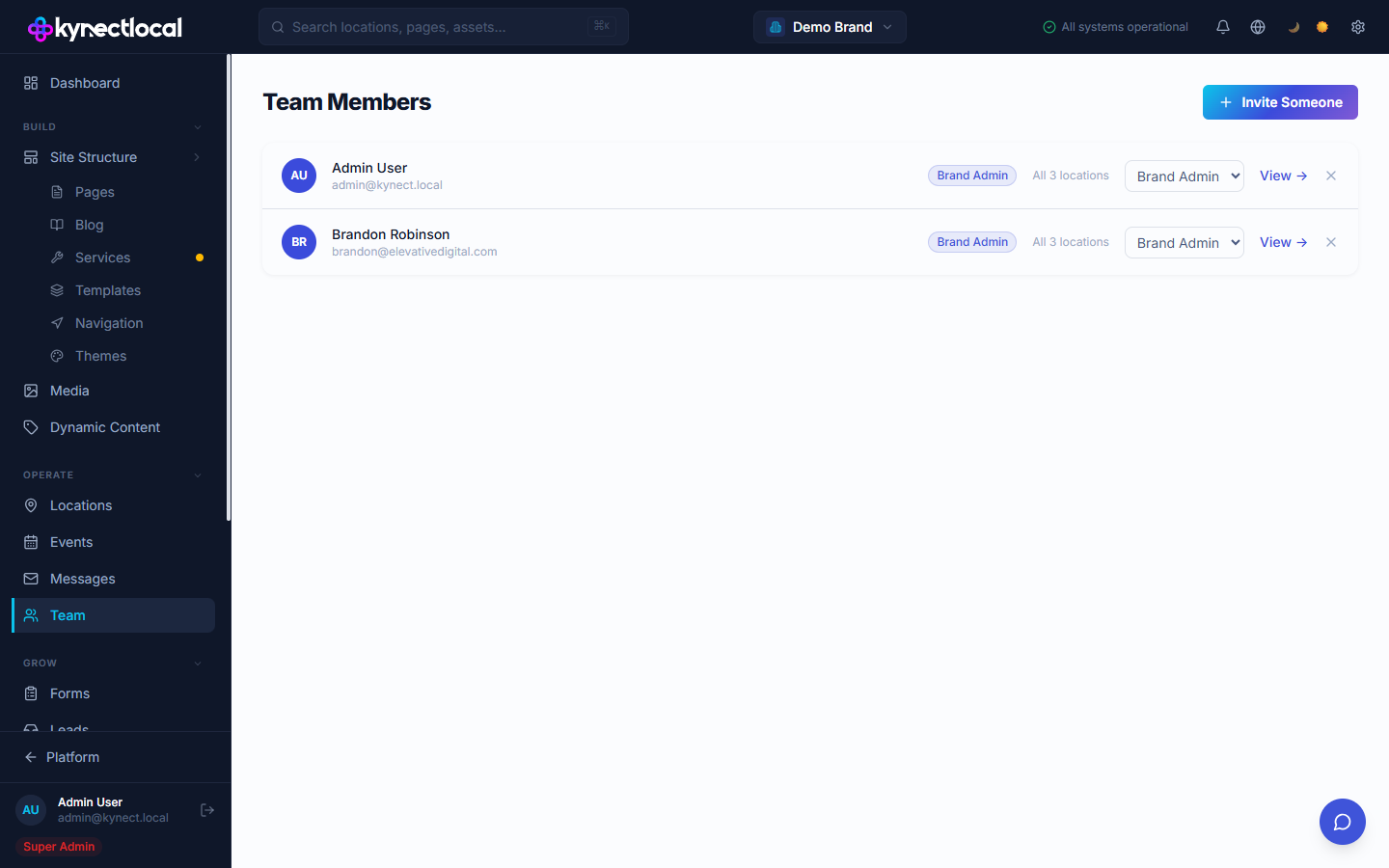
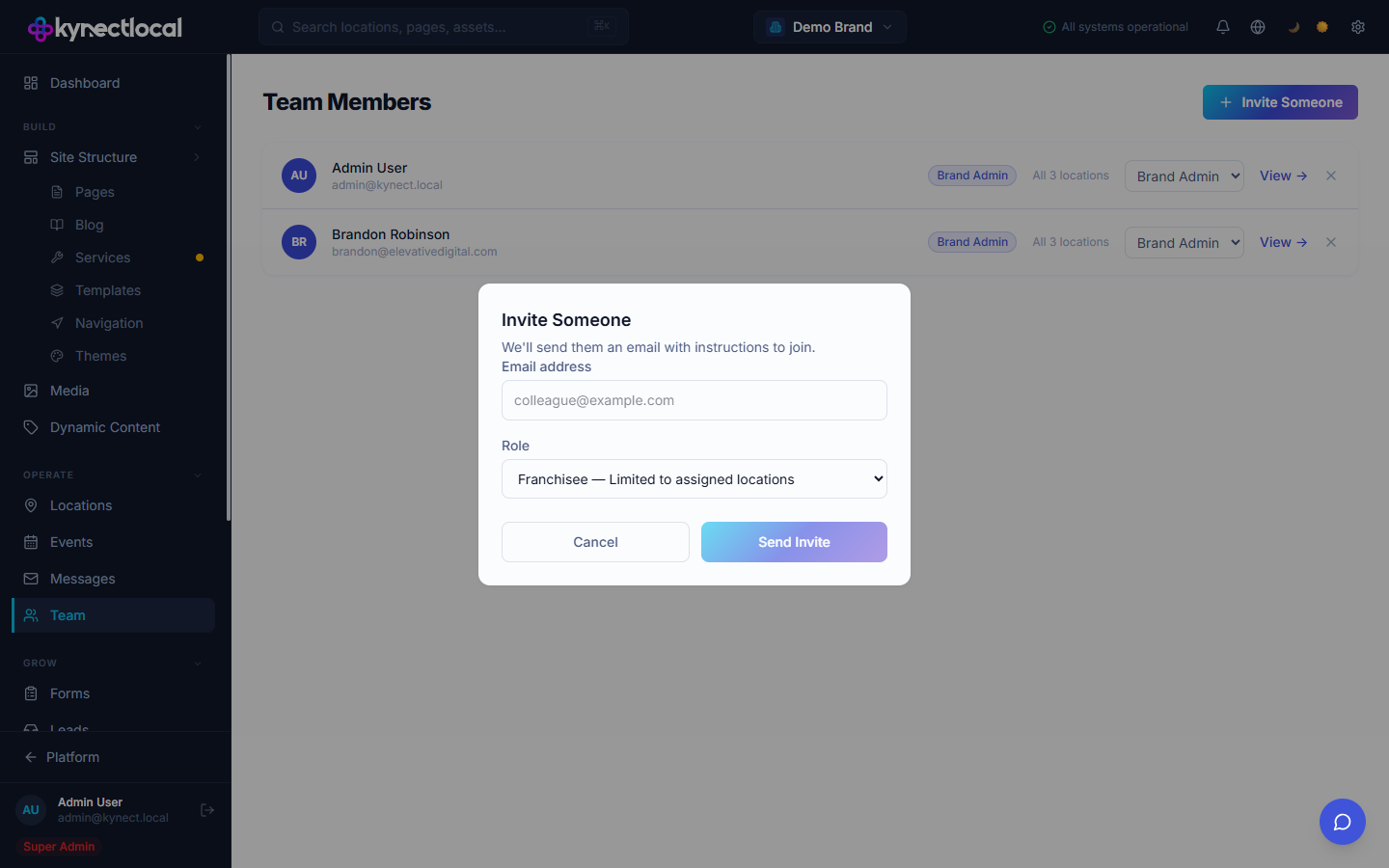
Manage who has access to your brand and what they can do — invite team members, assign roles, and remove users from the Settings → Users page.
When you’d use this
Section titled “When you’d use this”- Onboarding a new franchisee or marketing team member
- Changing a user’s role after a team restructure
- Removing access when someone leaves your organization
KynectLocal has three brand-level roles. Assign the right role when you invite each user.
| Role | What they can do |
|---|---|
| Brand Admin | Full access — settings, content, users, billing, and all locations |
| Franchisee | Edit only the locations assigned to them; fill editable zones in templates |
| Marketing | Read-only view of all brand content; cannot invite users or publish changes |
Inviting a user
Section titled “Inviting a user”
- Go to Settings → Users.
- Click Invite User.
- Enter the user’s email address and select their role.
- Click Send Invite.
KynectLocal sends the invitee an email with a link to set their password and access the platform.
Resetting a password
Section titled “Resetting a password”Users reset their own passwords from the login screen:
- Go to the KynectLocal login page.
- Enter the account email address and click Continue.
- On the password screen, click Forgot password?
- Check email for the reset link (expires after 1 hour).
As a brand admin, you cannot set passwords on behalf of other users. Direct users to the self-serve reset flow above.
Removing a user
Section titled “Removing a user”- Go to Settings → Users.
- Find the user in the list and click the ··· menu on their row.
- Select Remove user.
- Confirm the action.
Removed users lose access immediately. Their content contributions (pages, templates) are not deleted.
Related
Section titled “Related”- Billing & Plans — seat limits depend on your plan tier
- Templates — assign templates to specific franchisee locations