
HubSpot
The HubSpot integration pushes leads captured through KynectLocal forms directly into your HubSpot CRM as contacts. Every time a visitor submits a form on a location page, KynectLocal creates or updates the matching contact in HubSpot — no manual export required.
How it works
Section titled “How it works”- Trigger: A visitor submits any form on a location page.
- Action: KynectLocal queues a push job that calls the HubSpot Contacts API (v3).
- Result: A new contact is created in HubSpot with
firstname,lastname,email,phone, andhs_lead_status: NEW. If the email already exists in HubSpot, the existing contact is updated instead. - Visibility: Every push attempt (success or failure) appears in the Recent Activity table on the integration detail page.
Creating a HubSpot Private App
Section titled “Creating a HubSpot Private App”HubSpot connects via a Private App Token — not OAuth. You create the token once inside your HubSpot account.
- Log in to app.hubspot.com.
- Click the Settings gear icon (top-right).
- In the left sidebar, go to Integrations → Private Apps.
- Click Create a private app.
- Give it a name (e.g. “KynectLocal Integration”).
- Go to the Scopes tab and enable:
crm.objects.contacts.writecrm.objects.contacts.read
- Click Create app, then Continue creating in the confirmation dialog.
- Copy the token — you will only see it once. Treat it like a password.
Connecting in KynectLocal
Section titled “Connecting in KynectLocal”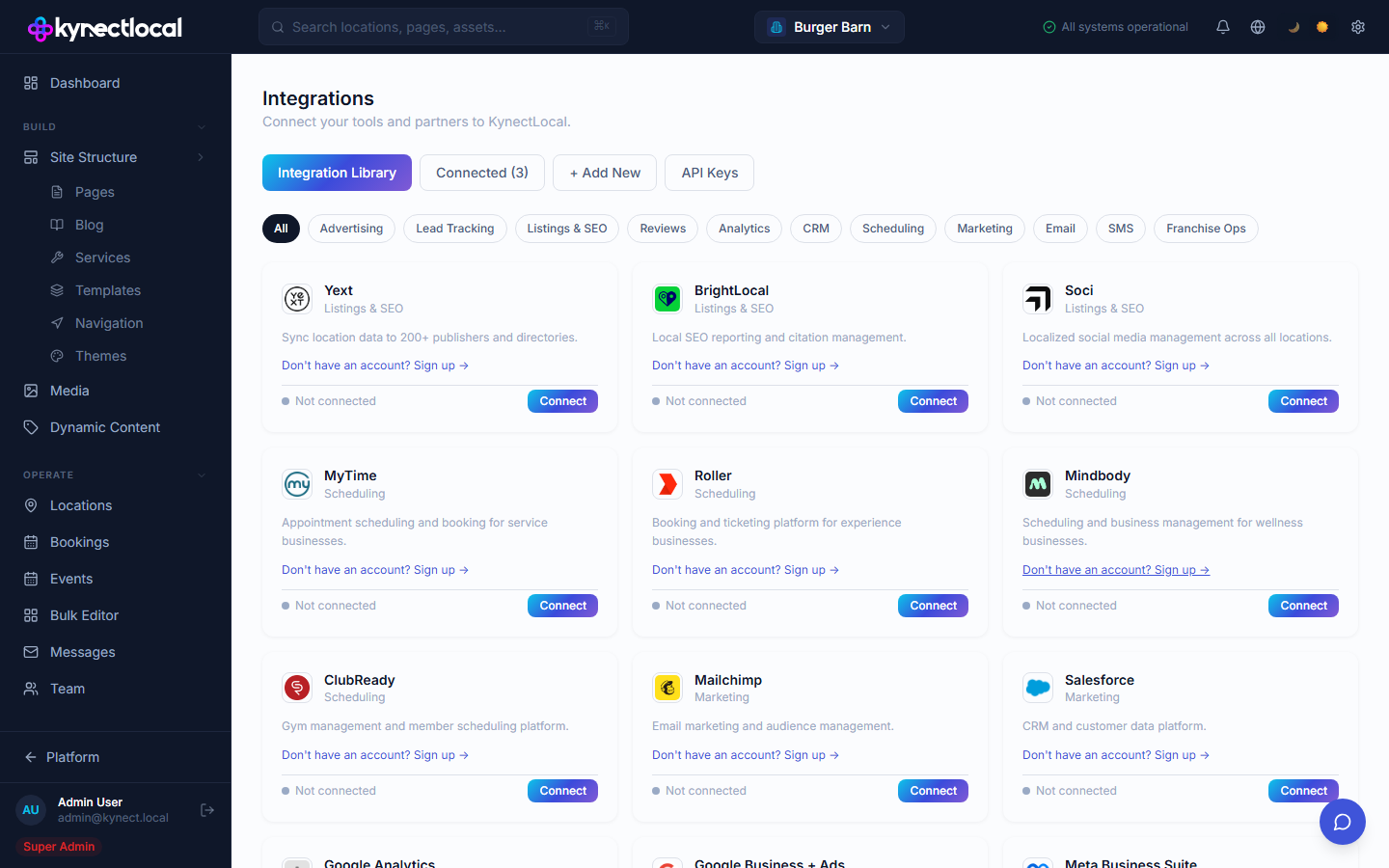
- Go to Apps → Integrations.
- Find HubSpot in the CRM category and click Connect.
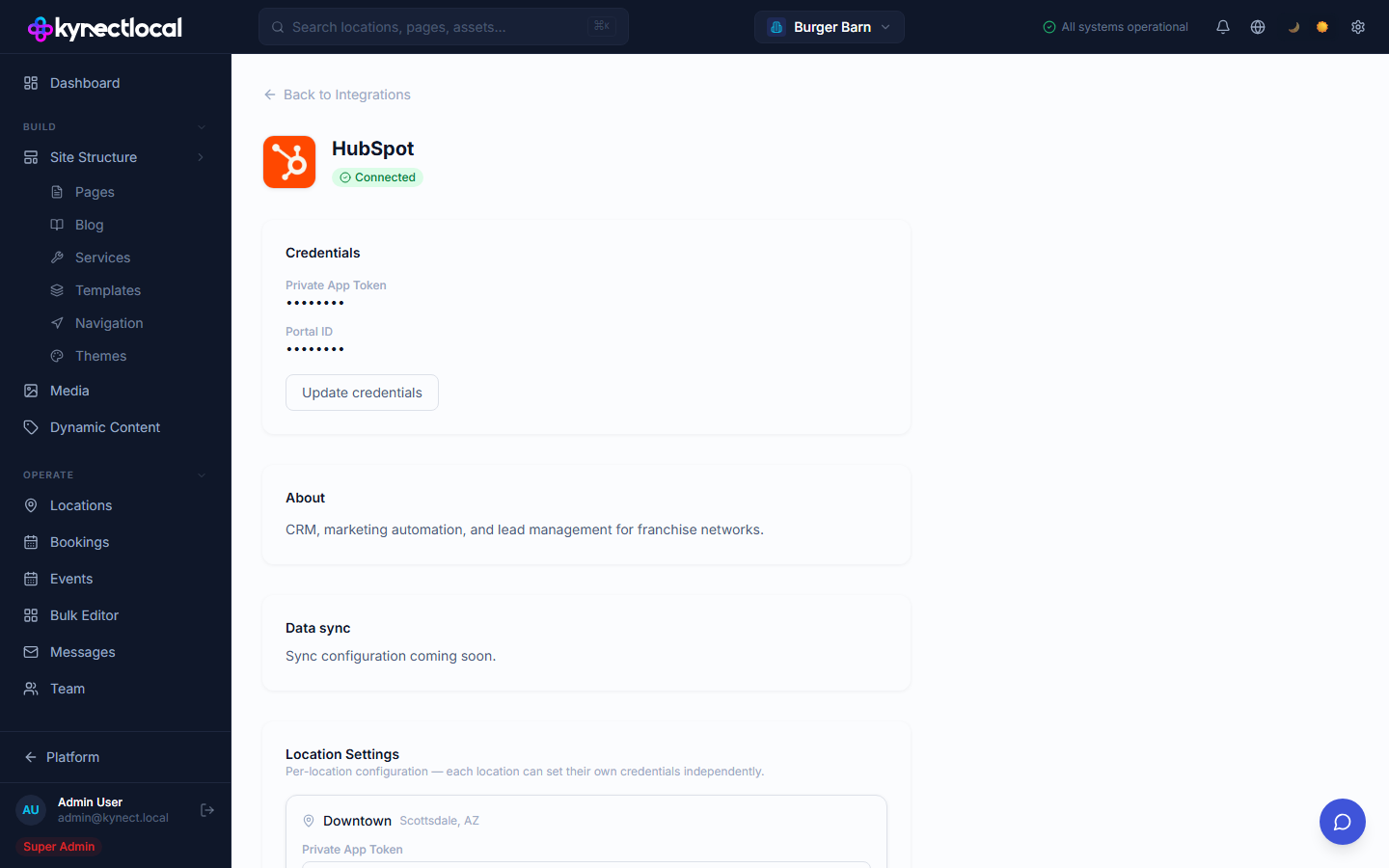
- Paste your Private App Token into the Private App Token field.
- (Optional) Enter your Portal ID — found in the URL of your HubSpot account (
app.hubspot.com/contacts/{portalId}). This is not required for pushing contacts but is useful for reference. - Click Connect.
KynectLocal encrypts the token with AES-256-GCM before storing it. It is never stored in plain text.
Location Settings
Section titled “Location Settings”Once connected, a Location Settings section appears below the connect form. Each franchisee location can supply its own Private App Token so that leads from that location push to both the brand HubSpot account and the franchisee’s own HubSpot account simultaneously.
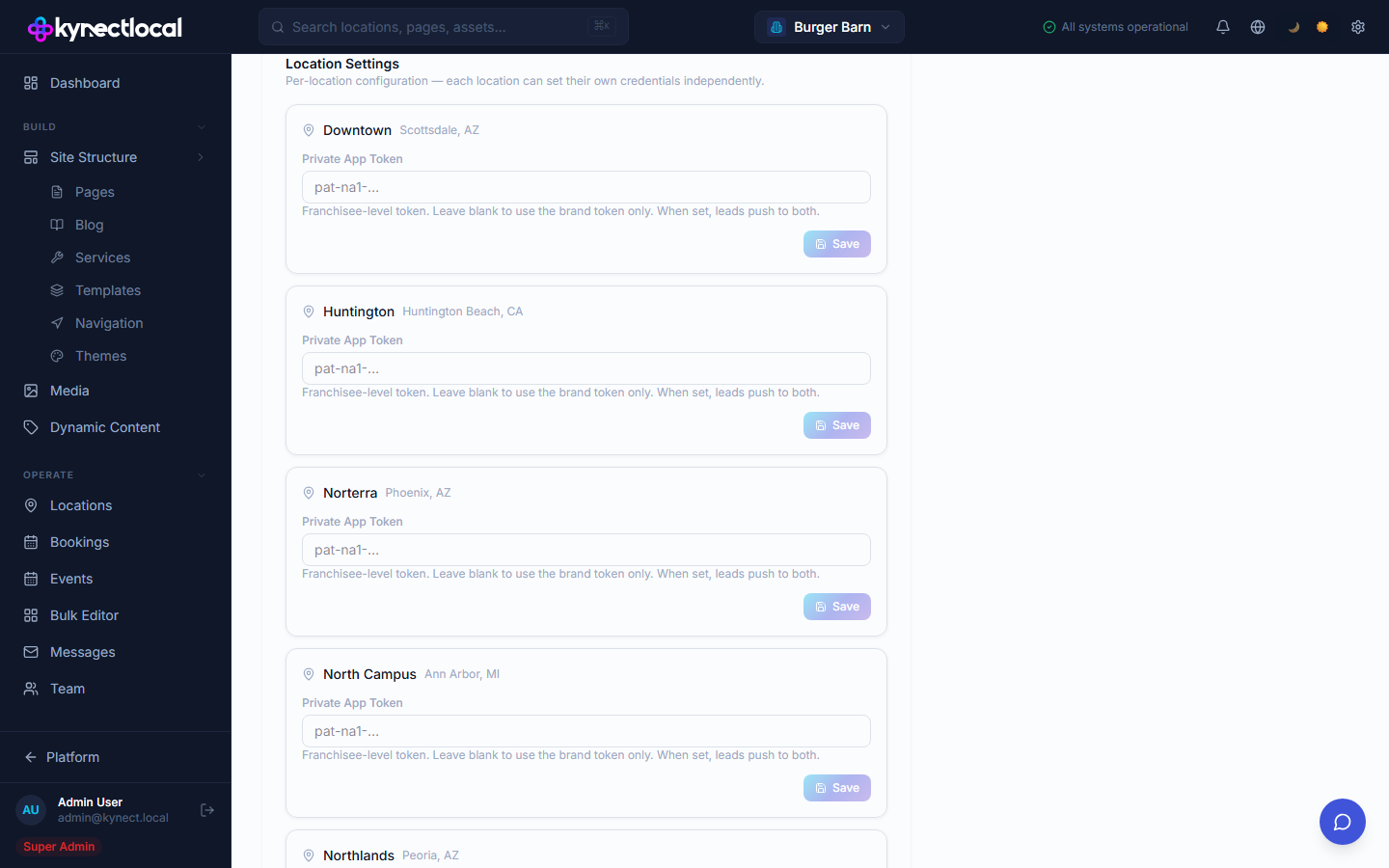
Franchisees set this token from their own Grow → Integrations page — see Franchisee Integrations for details.
What gets pushed
Section titled “What gets pushed”Every successful form submission on a KynectLocal location page triggers a push. The following fields are sent to HubSpot:
| HubSpot field | Source |
|---|---|
email | Form field named email |
firstname | First word of the form field named name |
lastname | Remaining words of the form field named name |
phone | Form field named phone (if present) |
hs_lead_status | Always set to NEW |
If the email address already exists as a contact in HubSpot, the contact is updated (PATCH) rather than creating a duplicate.
Viewing the push log
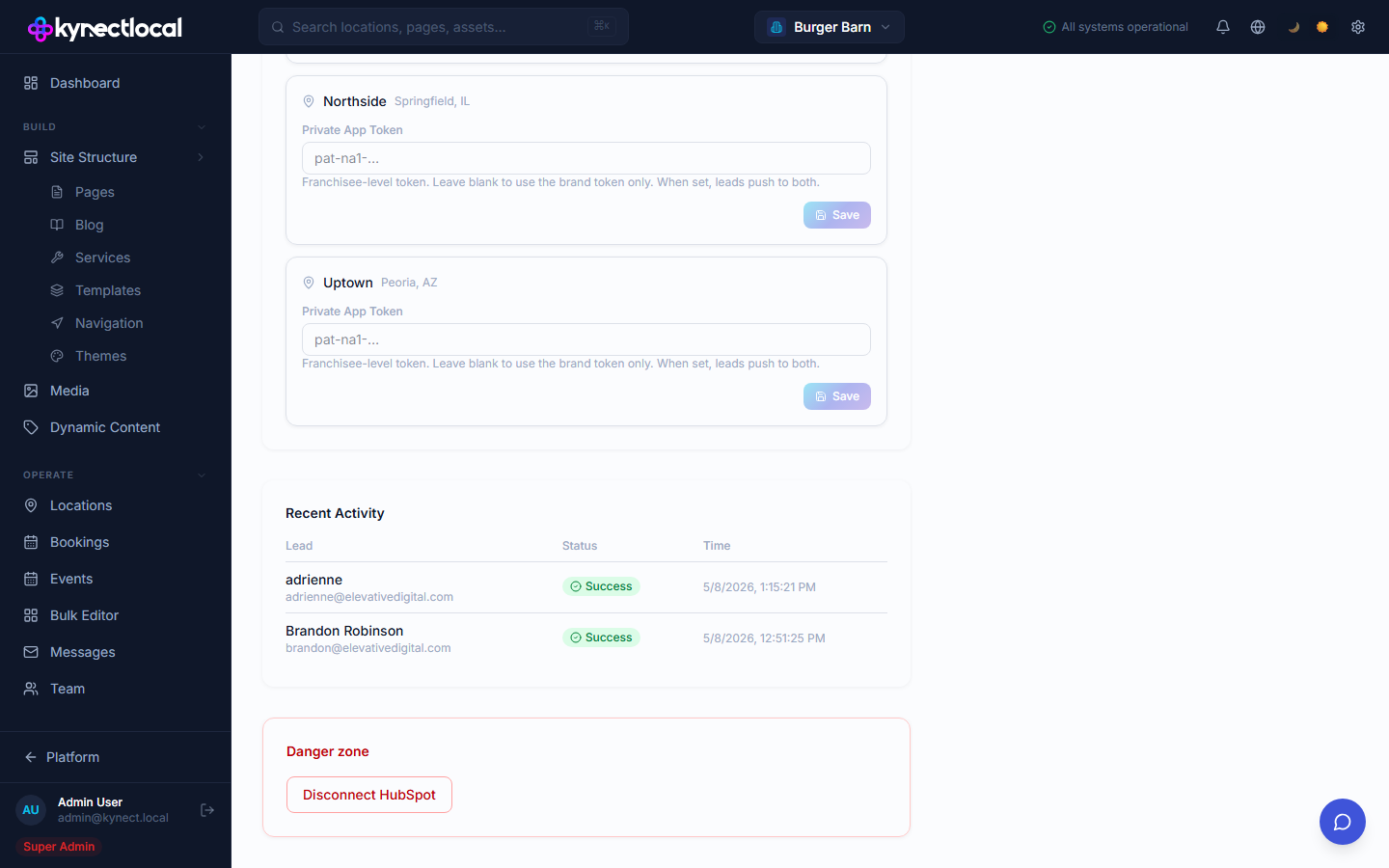
Section titled “Viewing the push log”After connecting, a Recent Activity table appears at the bottom of the HubSpot integration detail page. It shows the last 20 push attempts:
| Column | Description |
|---|---|
| Lead | Name and email of the form submitter |
| Status | Green Success or red Failed |
| Time | When the push was attempted |
Failed rows display the error message inline (e.g. “Lead has no email address”, “HubSpot API error 401”).
Disconnecting
Section titled “Disconnecting”- Open the HubSpot integration detail page.
- Scroll to Danger zone.
- Click Disconnect HubSpot and confirm.
Disconnecting removes the stored token. Any push jobs already in the queue will fail gracefully (logged as Integration not connected). Existing contacts in HubSpot are not affected.