
Dynamic Content
Dynamic Content — called Content Variables in the admin — is a token system that inserts live brand and location data into your pages, SEO fields, and templates at render time. Instead of writing “Burger Barn” or a phone number directly into content, you write {{brand.name}} or {{location.phone}} and the correct value is filled in automatically for each location.
When you’d use this
Section titled “When you’d use this”- Writing a page template that automatically adapts to each location’s name, address, and hours
- Creating an SEO title template that includes the location’s city for local search
- Defining a custom
{{custom.currentOffer}}token to update a promotion across all pages at once - Letting franchisees set their own local promo text via a Custom Location Token
Content Variables admin
Section titled “Content Variables admin”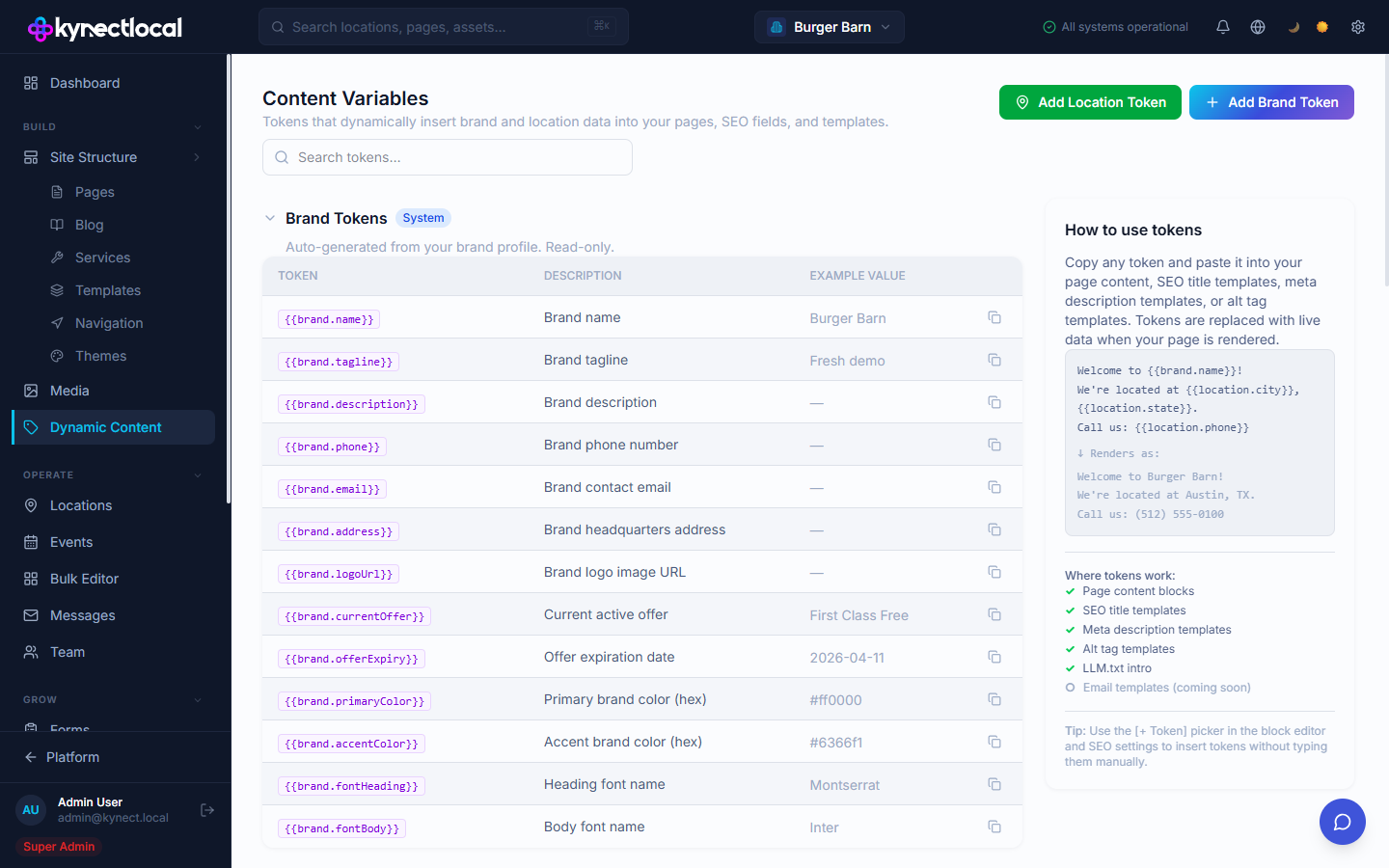
Go to Build → Dynamic Content to view and manage tokens. The page lists all available tokens organized by group, with the token syntax, a description, and an example value.
Token groups
Section titled “Token groups”Brand Tokens
Section titled “Brand Tokens”System tokens auto-generated from your brand profile. Read-only.
| Token | Description |
|---|---|
{{brand.name}} | Brand name |
{{brand.tagline}} | Brand tagline |
{{brand.description}} | Brand description |
{{brand.phone}} | Brand phone number |
{{brand.email}} | Brand contact email |
{{brand.address}} | Brand headquarters address |
{{brand.logoUrl}} | Brand logo image URL |
{{brand.currentOffer}} | Current active offer |
{{brand.offerExpiry}} | Offer expiration date |
{{brand.primaryColor}} | Primary brand color (hex) |
{{brand.accentColor}} | Accent brand color (hex) |
{{brand.fontHeading}} | Heading font name |
{{brand.fontBody}} | Body font name |
Location Tokens
Section titled “Location Tokens”System tokens auto-populated per location when a page renders. The example values shown in the admin are drawn from your first active location.
| Token | Description |
|---|---|
{{location.name}} | Location name |
{{location.phone}} | Location phone number |
{{location.email}} | Location email |
{{location.address}} | Full address (line 1, city, state, ZIP) |
{{location.city}} | City |
{{location.state}} | State (abbreviated, e.g. TX) |
{{location.stateFull}} | State (full name, e.g. Texas) |
{{location.zip}} | ZIP code |
{{location.slug}} | Location URL slug |
{{location.hours.monday}} … {{location.hours.sunday}} | Hours for each day of the week |
{{location.hours.today}} | Today’s hours (computed at render time) |
{{location.isOpenNow}} | ”Open” or “Closed” (computed at render) |
{{location.mapUrl}} | Google Maps URL for this location |
{{location.pageUrl}} | Full URL to this location’s page |
{{location.facebook}} | Facebook page URL |
{{location.instagram}} | Instagram URL |
{{location.twitter}} | Twitter/X URL |
{{location.yelp}} | Yelp business URL |
Page Tokens
Section titled “Page Tokens”System tokens available within page content and SEO fields.
| Token | Description |
|---|---|
{{page.title}} | Page title |
{{page.slug}} | Page URL slug |
{{page.type}} | Page type |
{{page.updatedAt}} | Last updated date |
Custom Tokens
Section titled “Custom Tokens”Custom tokens let you define your own brand-level content that doesn’t fit a standard field. The same value applies across all locations.
Click + Add Brand Token to create a custom token. You choose the token key (e.g. testtoken) and set a value (e.g. “20% off”). The token is available as {{custom.testtoken}} in any page, SEO field, or template.
Update the value to change it everywhere it’s used across your network.
Custom Location Tokens
Section titled “Custom Location Tokens”Custom Location Tokens work like Custom Tokens but are per-location — you define the key and default value, and each franchisee can set their own value for their location.
Click Add Location Token to create one. Each franchisee sees this token in their location profile and can enter their own value. If a franchisee hasn’t set a value, the default you defined is used.
Where tokens work
Section titled “Where tokens work”| Context | Supported |
|---|---|
| Page content blocks | Yes |
| SEO title templates | Yes |
| Meta description templates | Yes |
| Alt tag templates | Yes |
| LLM.txt intro | Yes |
| Email templates | Coming soon |
Using tokens
Section titled “Using tokens”Copy a token from the Content Variables page and paste it into any supported field. Tokens are replaced with live data when the page renders.
Use the [+ Token] picker button (shown as {{}}) in the Puck block editor and page SEO settings to browse and insert tokens without typing them manually.
Related
Section titled “Related”- Pages & Content (Puck) — use tokens in block content via the token picker
- Templates — tokens in SEO title and meta description templates apply across all pages using that template
- Locations — Custom Location Token values are set per location in the location profile under “Location Tokens”