
Pages & Content (Puck)
For Brands
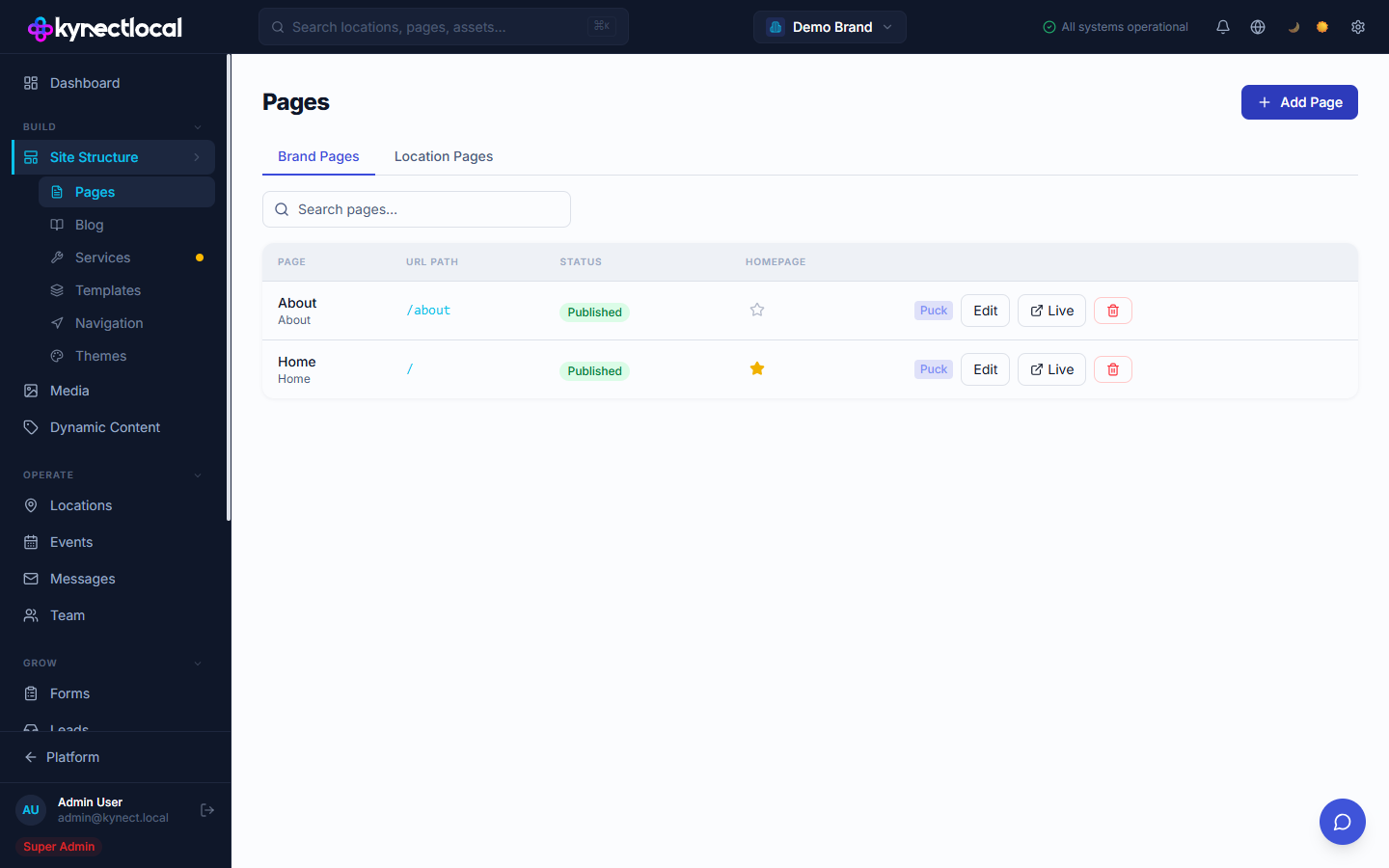
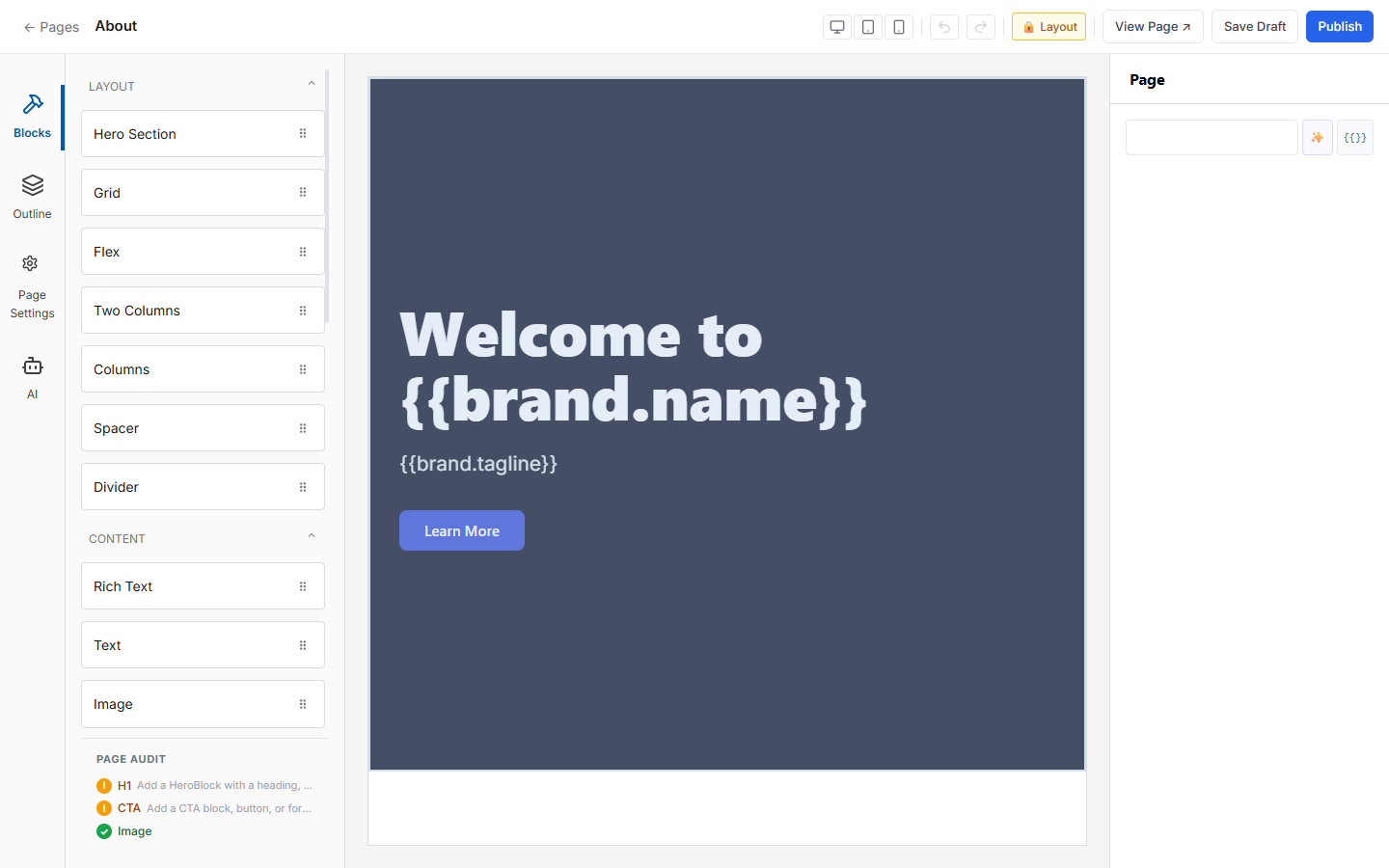
Edit a location’s pages directly in the Puck editor — add and arrange blocks, configure content zones to control what franchisees can change, and publish when ready.
When you’d use this
Section titled “When you’d use this”- Making a brand-wide content change to a specific location’s page
- Setting up a page layout before assigning a template to a location
- Publishing a draft page to make it live for site visitors
Opening the page editor
Section titled “Opening the page editor”
- Go to Content → Pages.
- Find the location and page you want to edit.
- Click Edit to open the Puck editor.
The editor has three areas:
| Area | Purpose |
|---|---|
| Block palette (left) | Drag blocks onto the canvas — Hero, Text, Image, Columns, and more |
| Canvas (center) | Your page layout; click any block to select it |
| Properties panel (right) | Edit the selected block’s content and settings |
Adding and arranging blocks
Section titled “Adding and arranging blocks”- Drag a block from the palette onto the canvas, or click a block to add it at the bottom of the page.
- Drag blocks up or down on the canvas to reorder them.
- Click a block on the canvas to open its properties in the right panel.
- Edit content fields in the properties panel — changes preview live on the canvas.
- To remove a block, select it and click the Delete icon in the block toolbar.
Content zones: locked vs. editable
Section titled “Content zones: locked vs. editable”Content zones define which parts of a page franchisees can modify. As a brand admin, you set this up on the template — it then applies to every location page using that template.
- Locked zone — content is set by you; franchisees cannot edit it. Use this for brand-critical sections like headers, footers, and legal disclaimers.
- Editable zone — franchisees fill this in using the content zone editor. Use this for locally unique content like team bios, local offers, or location-specific hours callouts.
To configure zones, open the template (not the individual page) and use the Content Zones panel. Changes to zone configuration on a template propagate to all pages using that template.
Saving and publishing
Section titled “Saving and publishing”
Pages have two states:
- Draft — saved but not visible to site visitors
- Published — live and publicly accessible
To publish a page:
- Make your edits in the Puck editor.
- Click Save to save as a draft at any point.
- When the page is ready, click Publish.
- Confirm the action. The page goes live immediately.
To undo recent edits, click the undo arrow in the editor toolbar. Closing the editor without saving also discards any unsaved changes.
Related
Section titled “Related”- Templates — build reusable layouts and assign them to location pages
- Account & Users — franchisees use the content zone editor to fill editable zones