
Logging In
Sign in to KynectLocal with your email address — no tenant slug or account ID required.
When you’d use this
Section titled “When you’d use this”- Accessing KynectLocal for the first time after receiving an invite
- Returning to your account from a new device or browser
- Resetting a forgotten password
Logging in
Section titled “Logging in”KynectLocal uses an email-first login flow. You never need to type a tenant name or account slug.
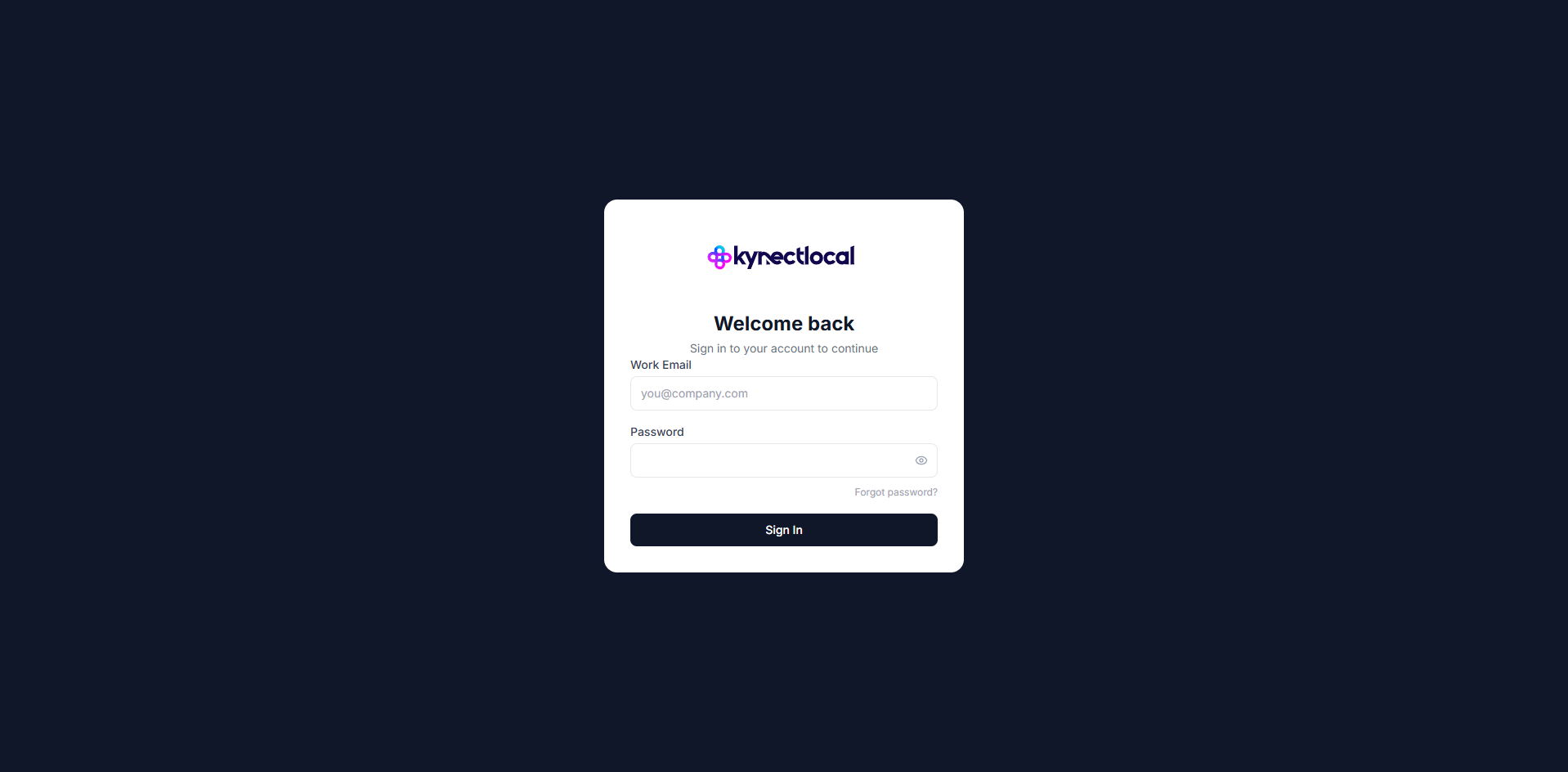
- Go to the KynectLocal login page.
- Enter your email address and click Continue.
- Enter your password and click Sign in.
You land on the dashboard for your assigned location.
First-time login
Section titled “First-time login”When your brand admin invites you, you receive an email with a link to set your password. Click the link, choose a password, and you are taken directly to your location dashboard.
Resetting your password
Section titled “Resetting your password”- On the login page, enter your email address and click Continue.
- On the password screen, click Forgot password?
- Check your email for the reset link — it expires after 24 hours.
- Click the link, enter a new password, and sign in.
If you do not receive the reset email within a few minutes, check your spam folder. If it still does not arrive, contact your brand admin.
Multiple accounts (org selector)
Section titled “Multiple accounts (org selector)”If your email address is associated with more than one tenant — for example, if you manage locations for two separate franchise brands — KynectLocal shows an organization selector after you enter your password. Choose the account you want to access and click Continue.
This screen only appears when your email has access to two or more tenants. Most users go straight to their dashboard without seeing it.
Related
Section titled “Related”- Editing Your Site — what to do once you are logged in