
Leads
The Leads page aggregates all leads captured from location sites across your network — form submissions, call leads from connected integrations, and chat leads. Each lead shows the submitter’s data, which form or source captured it, where the traffic came from, and its quality score.
When you’d use this
Section titled “When you’d use this”- Reviewing new contact form submissions or call leads from any location
- Filtering leads by location, form, status, source, type, or quality
- Scoring leads as Good or Spam to keep Digital Impact accurate
- Tracking which leads have been reviewed or archived
- Checking attribution to understand where leads are coming from
The Leads list
Section titled “The Leads list”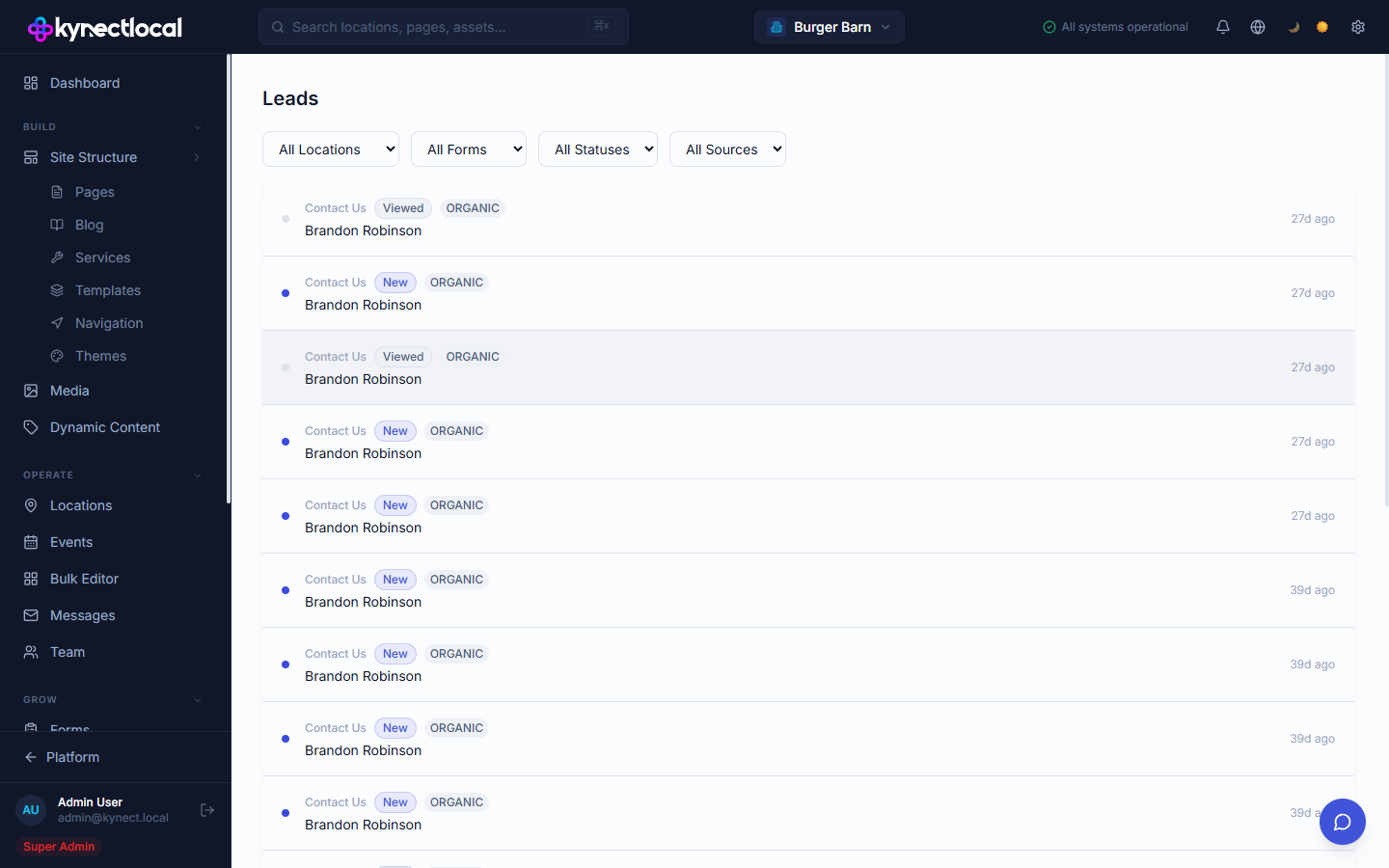
Go to Grow → Leads. Each row in the list shows:
- Form name — which form or source captured the lead (e.g., Contact Us, Lead Form, Phone Call)
- Status badge — New, Viewed, or Archived
- Source tag — traffic source at submission time (Organic, Promotion, or Paid)
- Submitter name — the name field from the form submission
- Time ago — when the submission was received
- Blue dot — indicates unread leads
- Quality toggles — three buttons at the end of each row: ✓ (Good), ✕ (Spam), — (Unscored). Click any to score the lead immediately.
Filtering leads
Section titled “Filtering leads”Use the dropdowns at the top to narrow the list:
| Filter | Options |
|---|---|
| All Locations | Filter by a specific location in your network |
| All Forms | Filter by form type: Contact Us, Lead Form |
| All Statuses | New, Viewed, or Archived |
| All Sources | Organic, Promotion, or Paid |
| All Quality | Good, Spam, Unscored |
| All Types | Form, Call, Chat |
Lead details
Section titled “Lead details”Click any row to open the Lead Details panel on the right. The panel shows:
Status — update the lead’s status by clicking New, Viewed, or Archived.
Quality — score the lead by clicking Good, Spam, or Unscored. Scoring updates immediately and affects Digital Impact calculations (see below).
Submitted Data — the fields the submitter filled in on the form, such as name, email, phone number, and message.
Attribution — source type (Organic, Promotion, or Paid), the form name, and the submission timestamp.
Lead Quality Scoring
Section titled “Lead Quality Scoring”Every lead has a quality score: Good, Spam, or Unscored (default). Brand admins and franchisees can score any lead they have access to. The marketing role cannot score leads.
How scoring works
Section titled “How scoring works”Score a lead from either the list or the detail panel:
- ✓ Good — a genuine inquiry worth following up on
- ✕ Spam — a bot submission, wrong number, or otherwise invalid lead
- — Unscored — the default; treated the same as Good for calculation purposes
Scoring is optimistic — the UI updates immediately.
Why it matters: Digital Impact
Section titled “Why it matters: Digital Impact”Spam-scored leads are excluded from form lead counts and click-to-call counts in the Digital Impact Report. Unscored leads count as Good, so there is no penalty for not scoring. Franchisees who actively score their leads get more accurate revenue attribution — spam calls and form submissions do not inflate the estimated pipeline.
Scoring importance banner
Section titled “Scoring importance banner”When call leads are present and any are unscored, a dismissible banner appears at the top of the page:
Score your leads to keep Digital Impact accurate. Marking spam calls prevents them from inflating your revenue estimates.
Dismissing the banner hides it for your user account. It reappears if new unscored call leads arrive.
Related
Section titled “Related”- Forms — configure the forms that capture leads on location pages
- Analytics — see lead volume trends alongside traffic data
- Digital Impact — spam-scored leads are excluded from revenue calculations
- Partner Services — marketing services that can increase lead volume