
My Integrations
The My Integrations page lets you add your own credentials to integrations that your brand admin has already connected at the brand level. When you save your own credentials, leads from your location push to both the brand’s account and your own simultaneously.
When you’d use this
Section titled “When you’d use this”- You want leads from your location to flow into your own HubSpot or Mailchimp account in addition to the brand’s account.
- Your brand admin has enabled an integration and asked each franchisee to add their own credentials.
Getting there
Section titled “Getting there”- Log in as a franchisee (location operator).
- In the left sidebar, go to Grow → Integrations.
The My Integrations page
Section titled “The My Integrations page”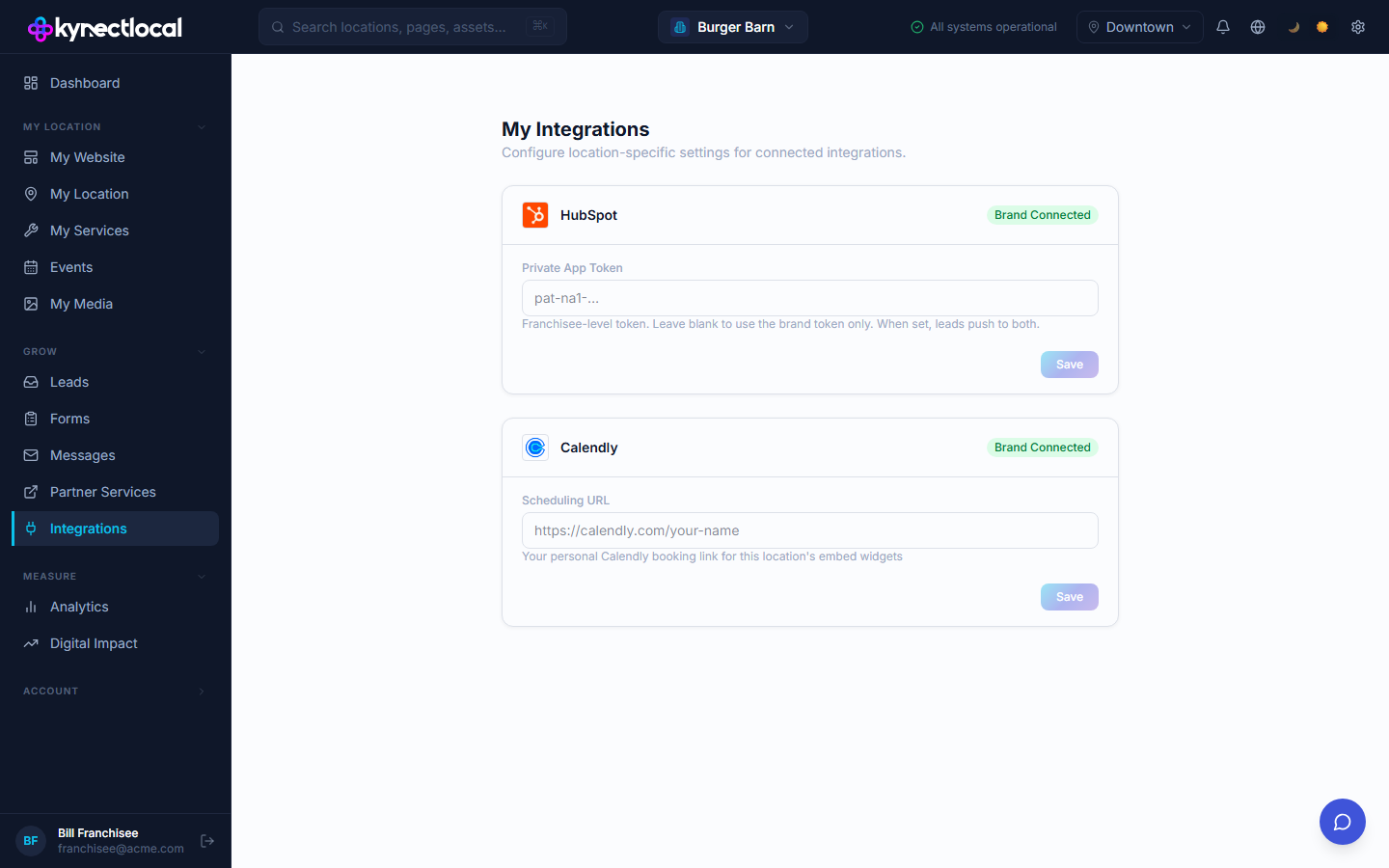
Each card corresponds to an integration your brand has enabled. You can enter your own credentials without affecting the brand-level connection.
HubSpot
Section titled “HubSpot”- Find the HubSpot card.
- Paste your Private App Token into the field.
- Click Save.
Once saved, the field shows a masked hint value (e.g. pat-na1-•••) confirming the credential is stored.
Mailchimp
Section titled “Mailchimp”- Find the Mailchimp card.
- Enter your API Key in the field shown.
- Optionally enter a Default Audience ID for your location’s Mailchimp account. Leave blank if you select an audience on each form individually — that is the recommended approach.
- Click Save.
Credential hint display: Once saved, the API Key field shows the first six characters of your key followed by bullet dots (e.g. abc123••••••••). This is normal — it confirms the key is stored without revealing the full value. If the field appears to show characters you don’t recognize, the key may have been set by someone else or at a different time; click Change to replace it.
Updating a saved key: Click the Change button next to the masked field. An editable text field appears. Enter your new API key and click Save. Click Cancel to exit without making changes — the existing key is preserved.
How dual-push works
Section titled “How dual-push works”When your brand has an integration connected and you have saved your own credentials:
- A form submission on your location page triggers two push jobs: one to the brand account and one to yours.
- Both pushes happen simultaneously and are logged independently.
- If your push fails (e.g. an invalid key), the brand push still succeeds — and vice versa.
Dashboard shortcut
Section titled “Dashboard shortcut”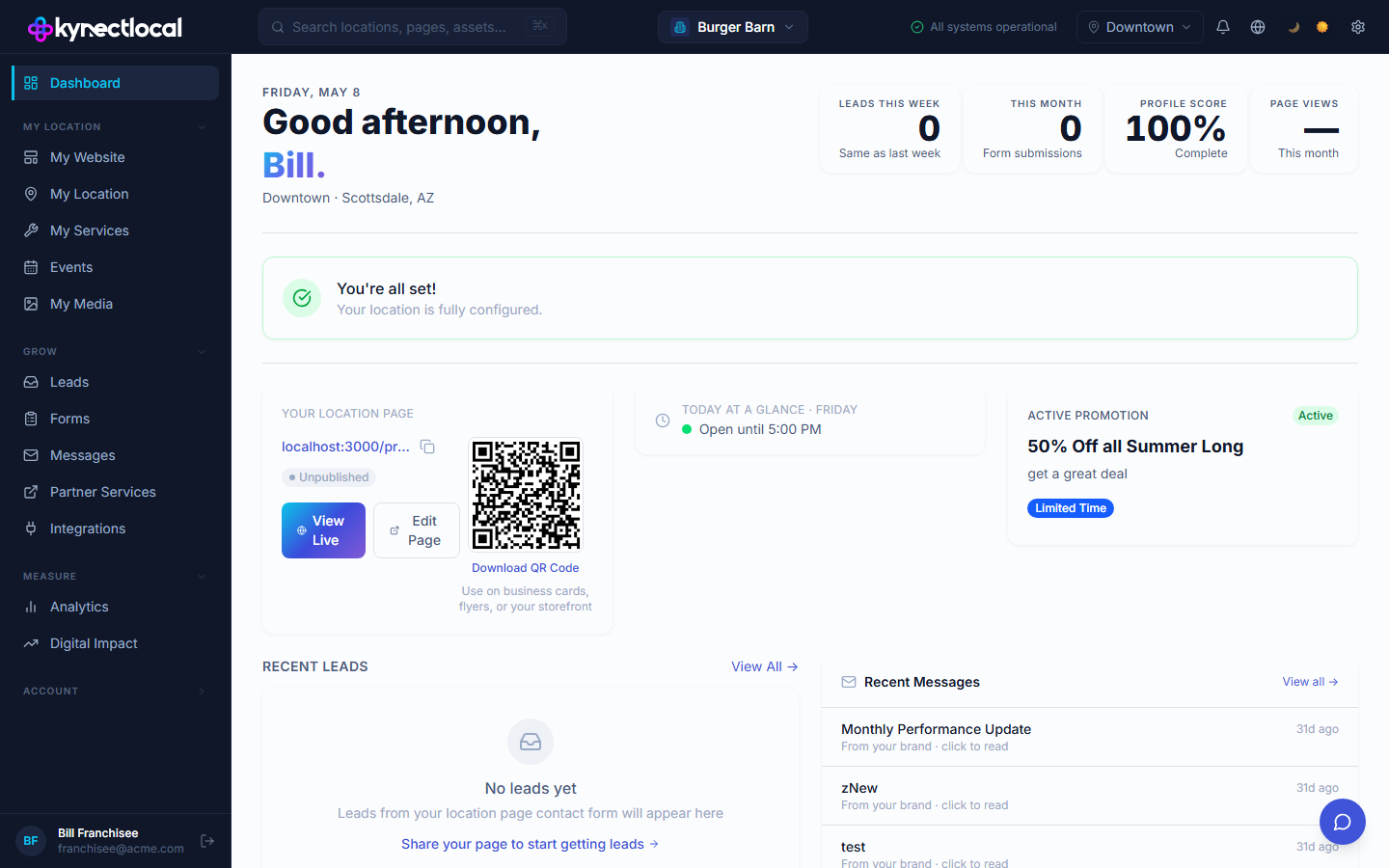
The franchisee dashboard includes a My Integrations → shortcut card in the quick-access section. Click it to go directly to this page without navigating through the sidebar.
Related
Section titled “Related”- Mailchimp integration guide — brand admin setup and form-level audience configuration
- HubSpot integration guide — brand admin setup and how the dual-push pattern works
- Managing Forms — view form submissions