
Templates
For Brands
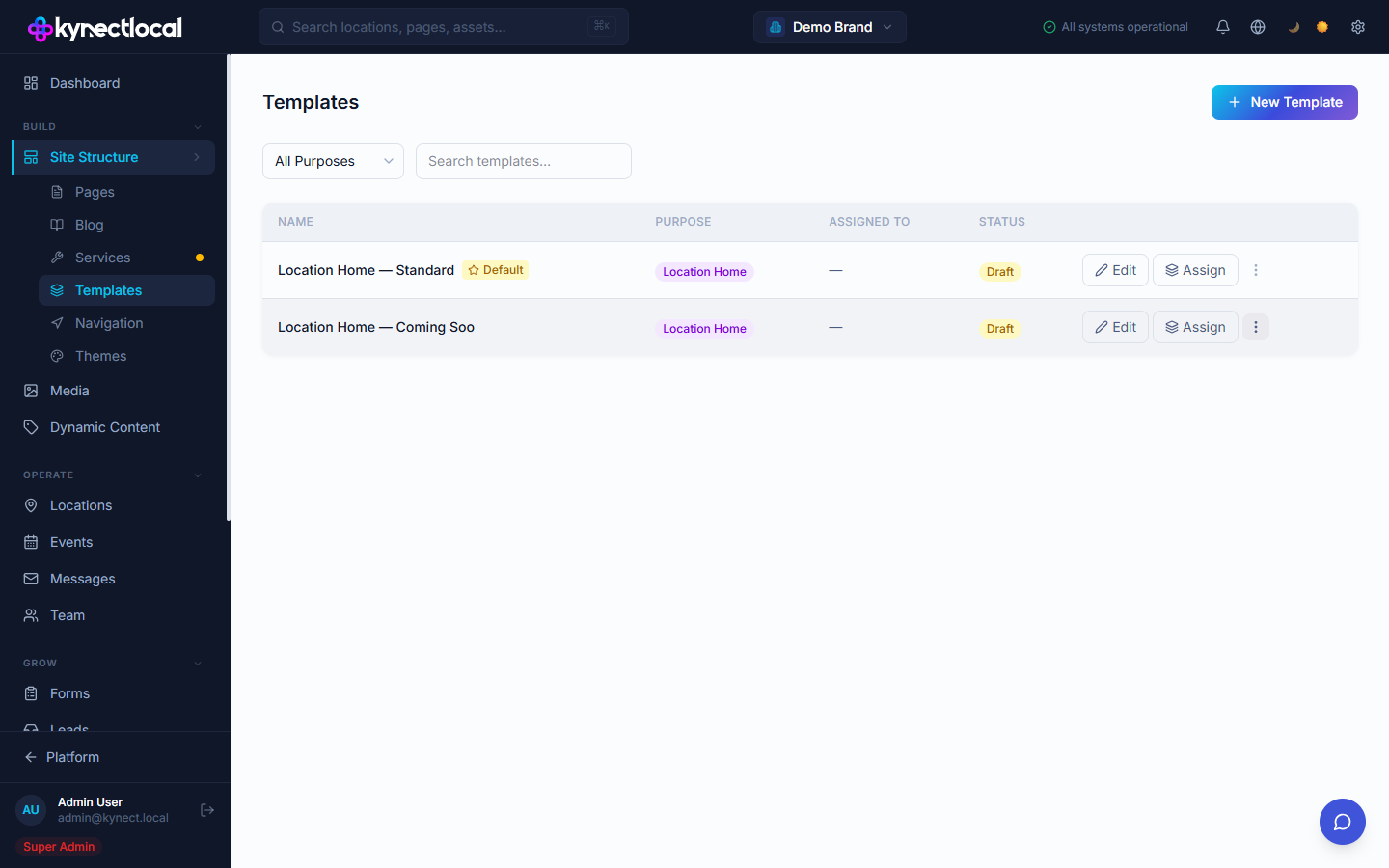
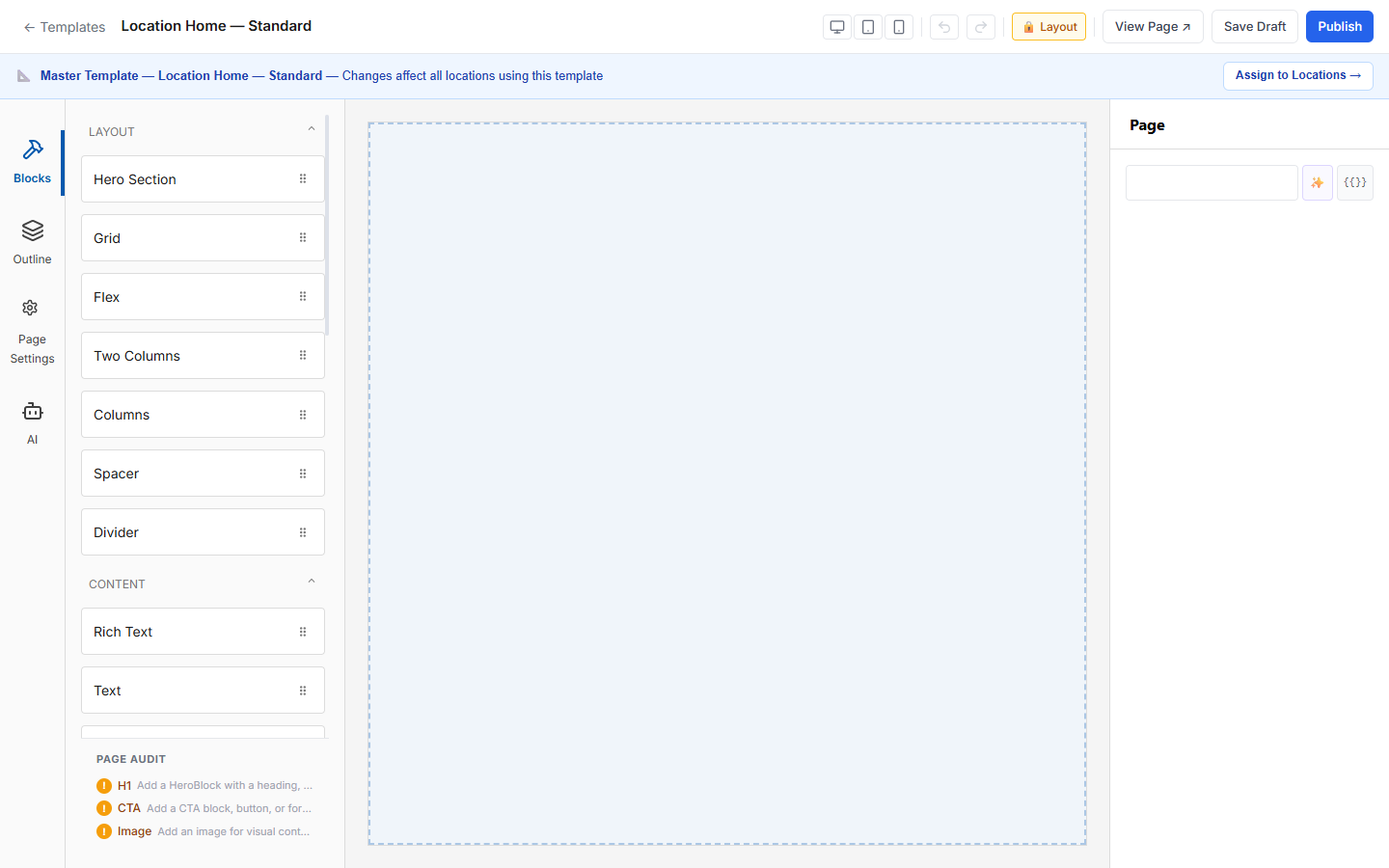

A template is a Puck-based page design you build once and assign to any number of location pages — controlling brand-consistent layout while letting franchisees fill in their local content.
When you’d use this
Section titled “When you’d use this”- Building the standard home page layout every new location gets on launch
- Creating a seasonal campaign page to push out across the network simultaneously
- Defining which sections a franchisee can edit vs. which are brand-controlled
Template purposes
Section titled “Template purposes”Every template has a template purpose that determines where it can be assigned.
| Purpose | Used for |
|---|---|
| Location Home | The main landing page for a location |
| Service Pages | Pages dedicated to individual services offered at a location |
| Coming Soon | Placeholder page shown before a location launches |
| Campaign | Time-limited promotional pages |
| General | Any other page type |
Creating a template
Section titled “Creating a template”
- Go to Content → Templates.
- Click New Template.
- Enter a name, select a template purpose, and click Create.
- The Puck editor opens. Build your layout by adding and arranging blocks.
- Use the Content Zones panel in the sidebar to designate which sections franchisees can edit. Any zone you mark as locked retains your brand-controlled content; zones left unlocked become editable zones franchisees fill in via the content zone editor.
- Click Save when the layout is ready.
Assigning a template to locations
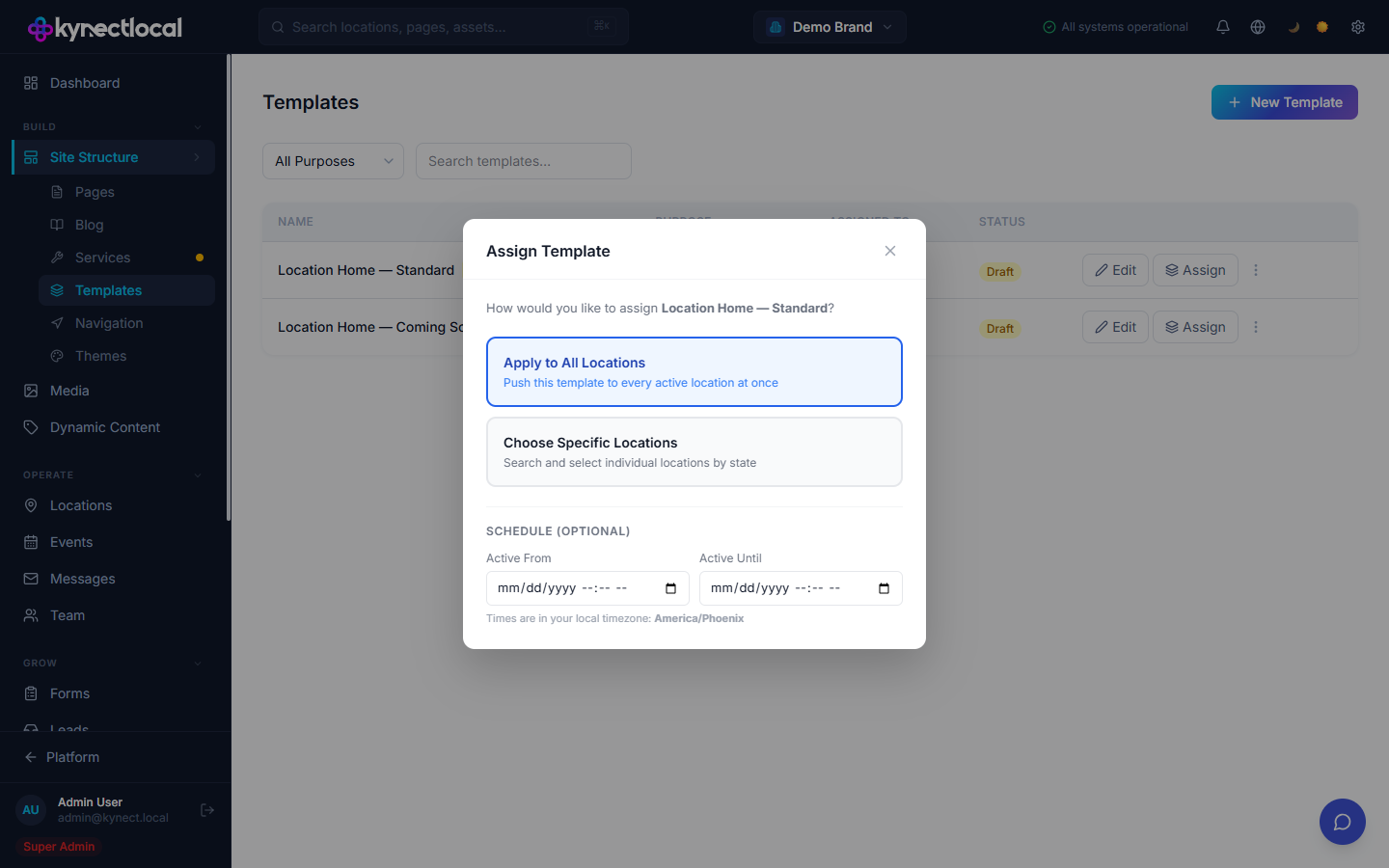
Section titled “Assigning a template to locations”An assignment links a template to a location’s page. You can assign to one location, a selection, or all locations at once.
- From the Templates list, click ··· on the template row and select Assign.
- Choose locations:
- All locations — applies to every location in your network
- Specific locations — pick from the list
- Choose when the assignment takes effect:
- Leave the date blank for an immediate assignment
- Set a start date to schedule the assignment for a future date
- Set an end date to automatically revert to the previous template when the campaign ends
- Click Assign.
Default templates
Section titled “Default templates”The default template is automatically assigned to a location page when that location is first created. Without a default, new locations start with a blank page.
To set a template as the default for its purpose:
- Open the template from the Templates list.
- In the template settings panel, turn on Set as default for [purpose].
Only one template per purpose can be the default at a time. Setting a new default clears the previous one.
Related
Section titled “Related”- Pages & Content — edit a specific location page in the Puck editor
- Account & Users — assign the Franchisee role so operators can fill editable zones