
Themes
Themes control the visual design of your brand’s location sites — colors, typography, header, footer, and component styles. One theme is active at a time and applies to all location pages.
When you’d use this
Section titled “When you’d use this”- Selecting a different built-in theme to match your franchise’s brand identity
- Customizing the active theme’s CSS to apply brand colors or fine-tune styles
- Uploading a custom theme built for your brand
The Themes admin
Section titled “The Themes admin”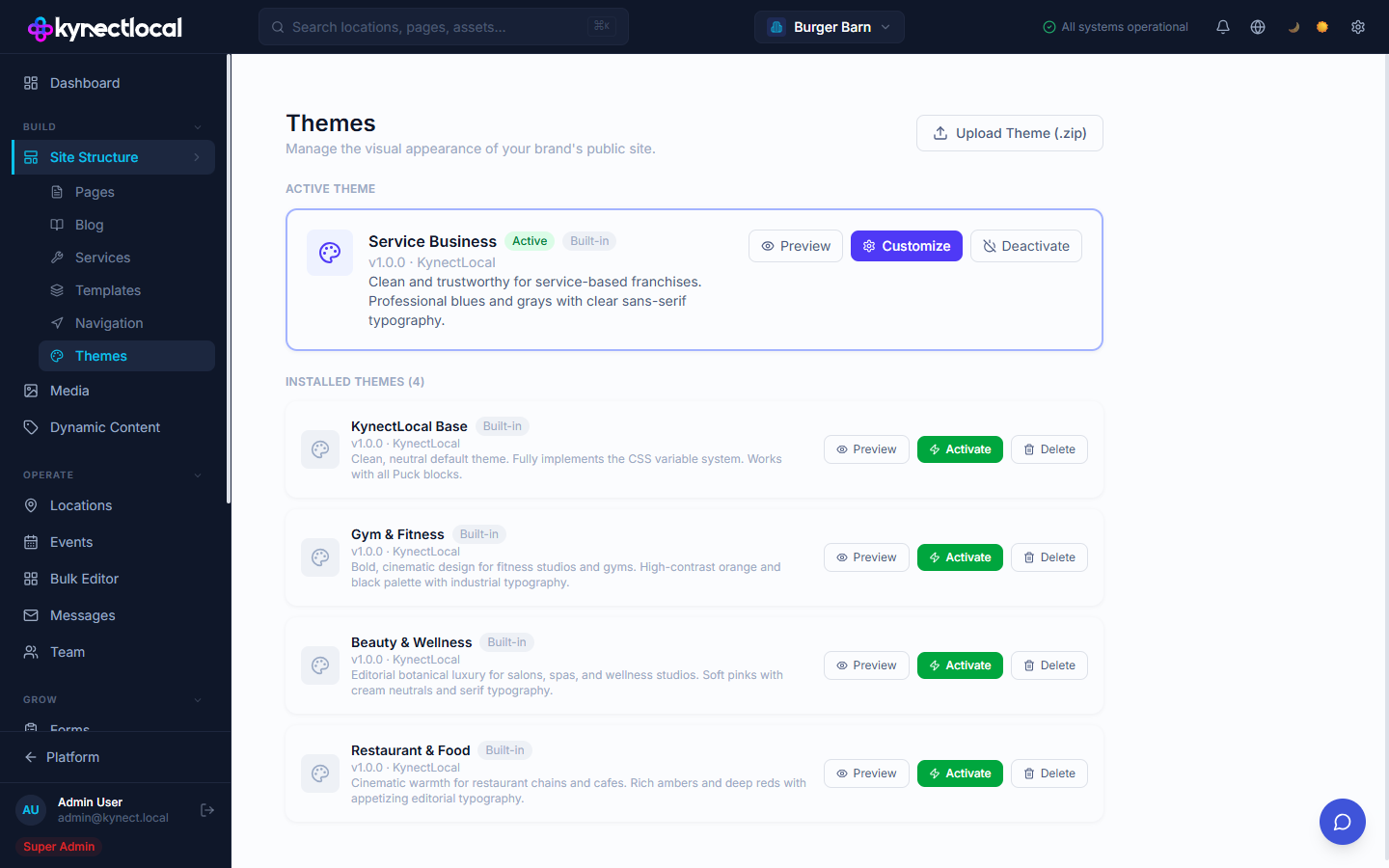
Go to Build → Site Structure → Themes to manage themes.
The page is divided into two sections:
Active Theme — the theme currently applied to all location pages. Actions:
- Preview — open a live preview without making changes
- Customize — open the theme editor to add CSS, JavaScript, or external libraries
- Deactivate — switch back to no active theme (falls back to the base theme)
Installed Themes — themes installed but not currently active. Actions:
- Preview — preview the theme without activating it
- Activate — make this the active theme, replacing the current one
- Delete — remove the theme (built-in themes cannot be deleted)
Built-in themes
Section titled “Built-in themes”KynectLocal includes five built-in themes:
| Theme | Description |
|---|---|
| Service Business | Professional blues and grays with clear sans-serif typography |
| KynectLocal Base | Clean, neutral default. Fully implements the CSS variable system |
| Gym & Fitness | High-contrast orange and black palette with industrial typography |
| Beauty & Wellness | Soft pinks with cream neutrals and serif typography |
| Restaurant & Food | Rich ambers and deep reds with editorial typography |
Uploading a custom theme
Section titled “Uploading a custom theme”Click Upload Theme (.zip) to install a theme package. Custom themes follow the KynectLocal theme format and can be built to match your brand’s exact design specifications.
Customizing the active theme
Section titled “Customizing the active theme”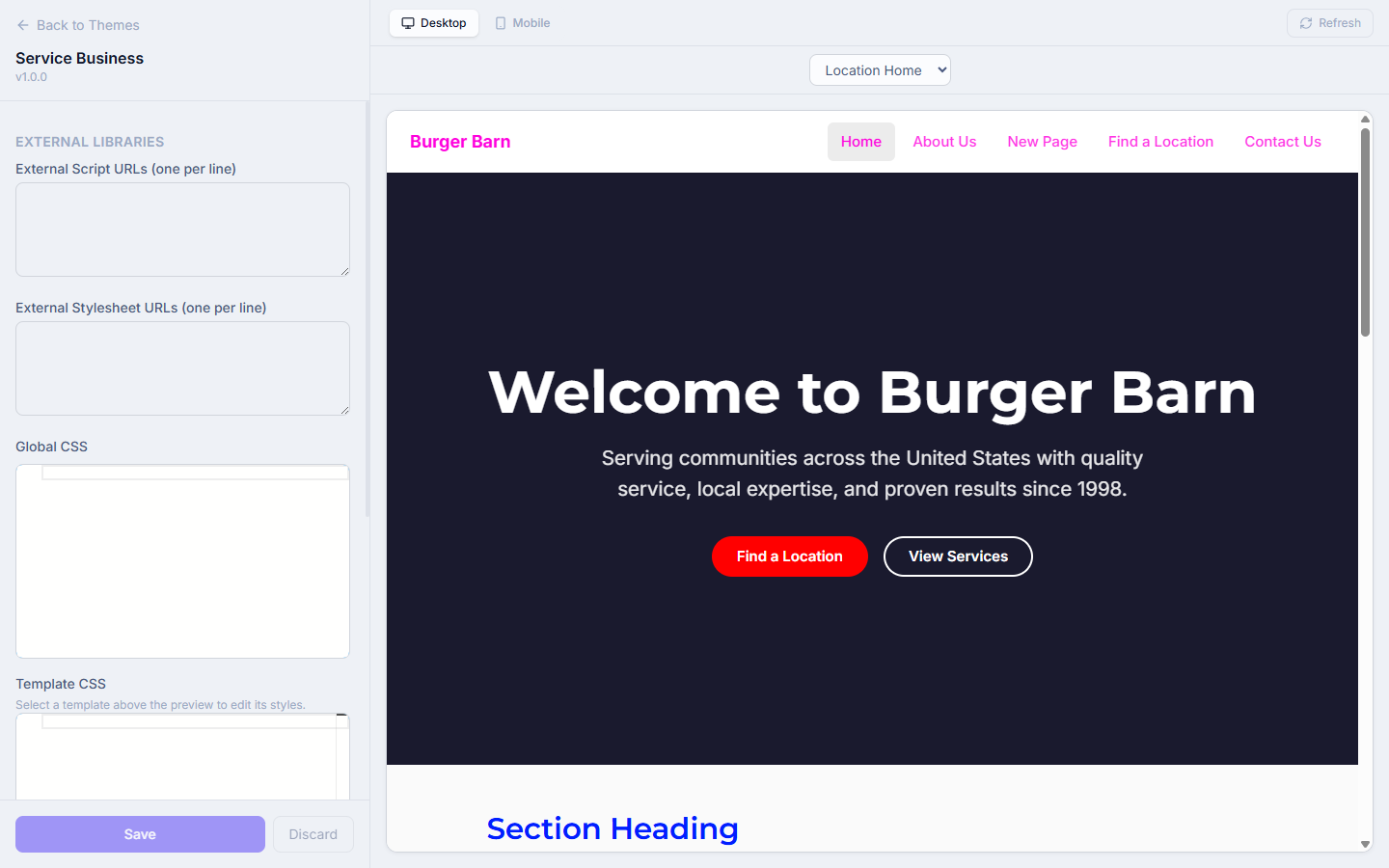
Click Customize on the active theme to open the theme editor. Changes here apply on top of the theme’s base styles — you do not edit the theme files directly.
External Libraries
Section titled “External Libraries”- External Script URLs — load third-party JavaScript libraries (e.g. a font library or analytics script) by entering one URL per line
- External Stylesheet URLs — load external CSS files (e.g. a web font stylesheet) by entering one URL per line
Global CSS
Section titled “Global CSS”Write CSS that applies to all pages on the location site. Use this to override theme variables or add brand-specific styles.
Template CSS
Section titled “Template CSS”Write CSS scoped to a specific template. Use the page selector dropdown in the preview panel to choose a template (Brand Home, Location Home, Service Page). CSS entered here is injected only on pages using that template.
Custom JavaScript
Section titled “Custom JavaScript”Write JavaScript that runs on all location pages. Use this to initialize third-party integrations or add custom behavior.
Version History
Section titled “Version History”The editor keeps the last 10 saved versions. Click Version History to view and restore a previous state.
Save and Discard
Section titled “Save and Discard”Click Save to apply your changes. Click Discard to revert to the last saved state.
Related
Section titled “Related”- Templates — assign page-level templates that inherit the active theme’s styles
- Navigation — the header and footer that the theme renders
- Pages & Content (Puck) — Puck blocks render within the active theme’s layout