
Service Pages
A service page is a dedicated URL for a specific service at a specific location — for example, burgerbarn.com/locations/norterra/oil. Each service page is auto-generated from the service you add and uses a shared Service Pages template to control its layout.
When you’d use this
Section titled “When you’d use this”- Launching a new service across your franchise network and creating pages for each location
- Unpublishing a discontinued service without deleting it permanently
- Updating the template that controls how all service pages look
How service pages work
Section titled “How service pages work”- You add a service to a location (name + optional description).
- KynectLocal generates a URL for that service based on the service name.
- The service page is rendered using the Service Pages template — the same template across all locations.
- Enabling the service publishes the page; disabling it takes the page offline without deleting the service.
The template controls the design and layout. The service name and description you enter here populate the page content via tokens.
The Services admin
Section titled “The Services admin”Go to Build → Site Structure → Services to manage services for each location.
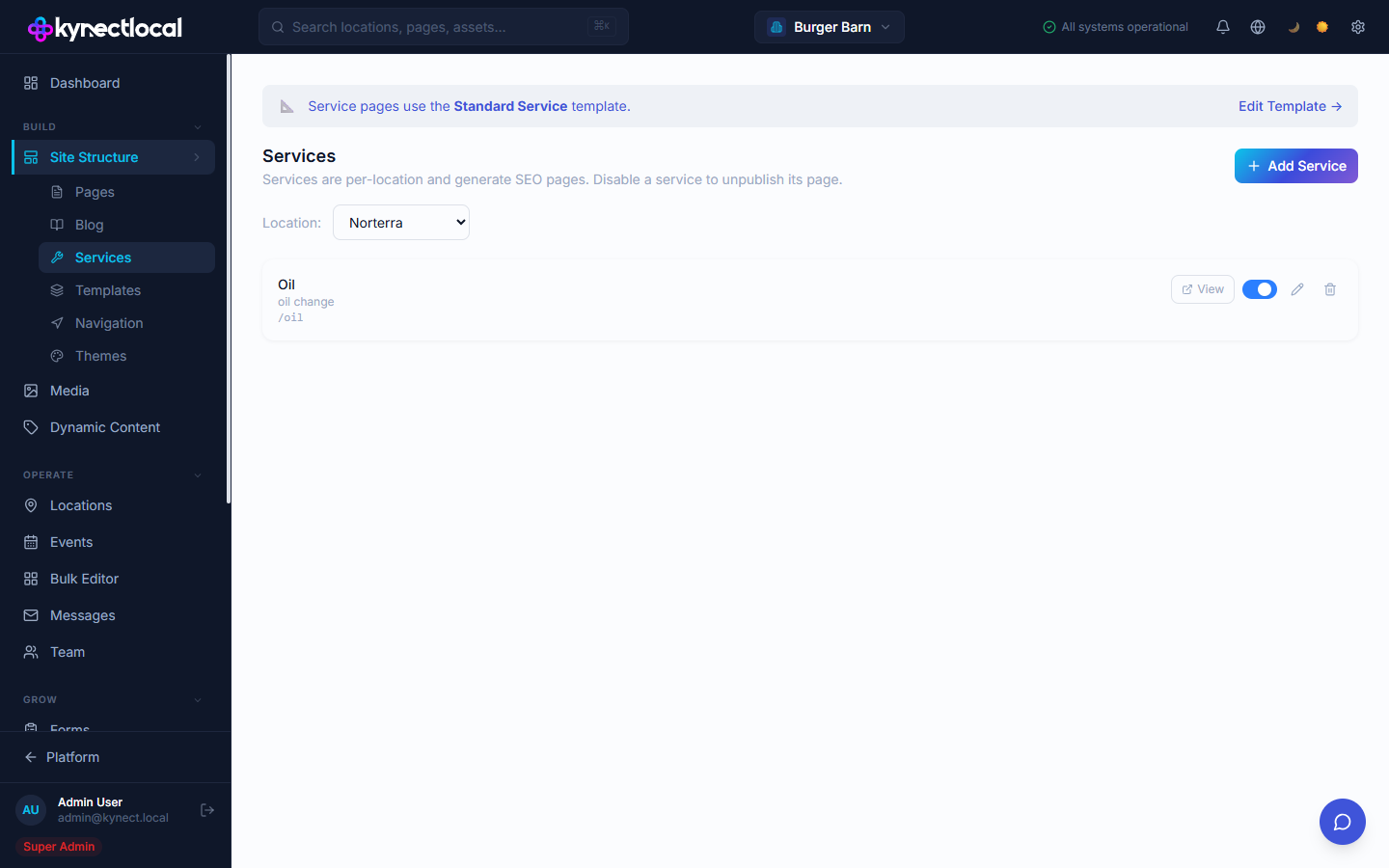
The banner at the top shows which template is currently in use for service pages. Click Edit Template → to open it in the Puck editor and change the layout.
Use the Location dropdown to switch between locations. Each location manages its own service list independently.
Each service row shows:
| Column | What it means |
|---|---|
| Service name | The display name used on the page and in navigation |
| Description | Optional short description shown below the name |
| URL slug | The path appended to the location’s URL (e.g. /oil) |
| Toggle | Blue = enabled (page live); grey = disabled (page offline) |
Adding a service to a location
Section titled “Adding a service to a location”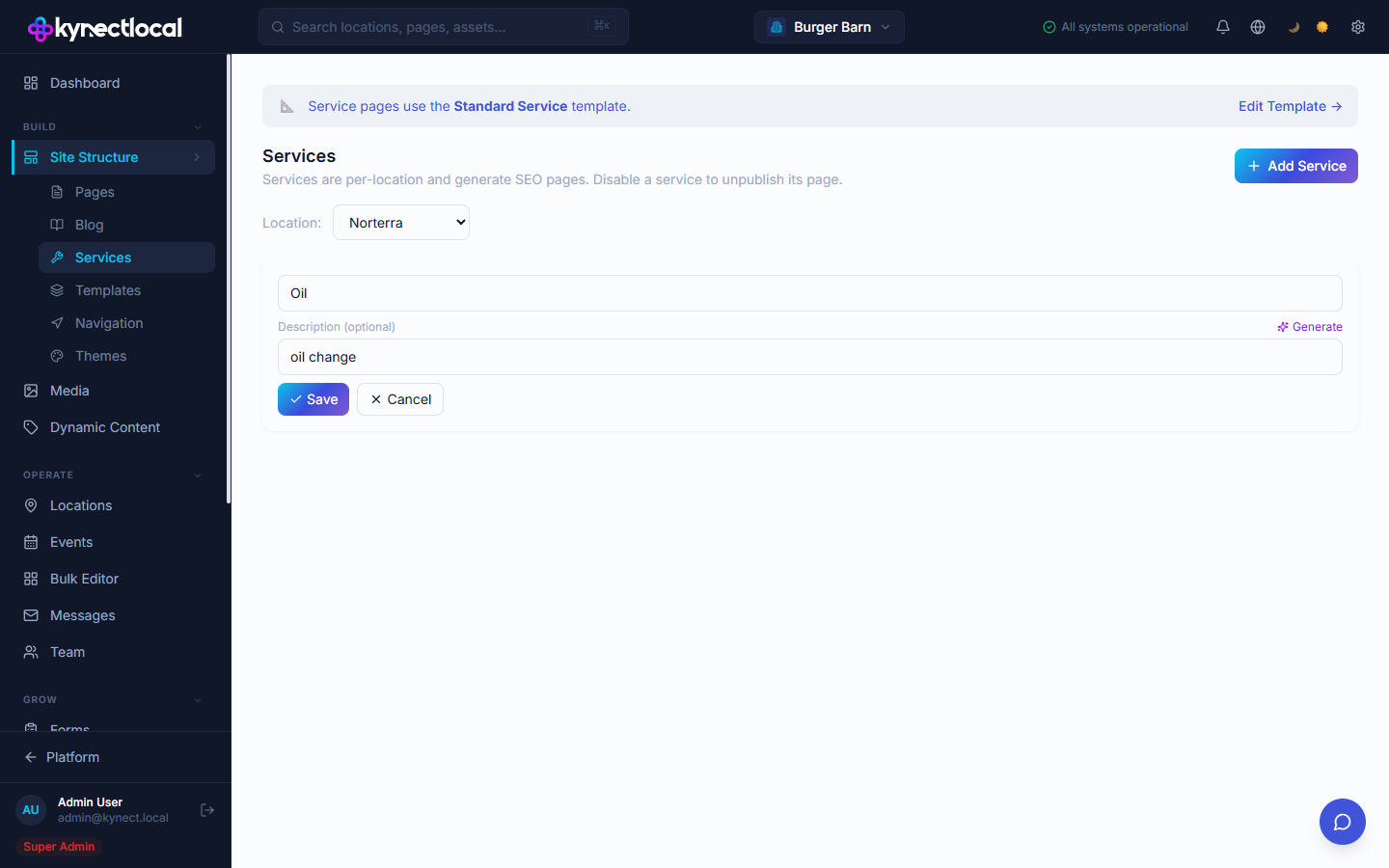
- Go to Build → Site Structure → Services.
- Select the location from the Location dropdown.
- Click + Add Service.
- Enter the service name — this becomes the page title and the URL slug.
- Optionally enter a description. Click ✦ Generate to use AI to draft a description from the service name.
- Click Save.
KynectLocal creates the service and publishes its page immediately.
Disabling a service
Section titled “Disabling a service”Toggle the switch on a service row to disable it. The service page goes offline immediately. The service stays in your list so you can re-enable it later. Disabling does not affect other locations — each location’s toggle is independent.
Editing a service
Section titled “Editing a service”Click the pencil icon on any service row to edit the name or description. Saving re-publishes the page with the updated content.
Deleting a service
Section titled “Deleting a service”Click the trash icon to permanently delete a service and its page. This cannot be undone. If you want to take a page offline temporarily, disable the toggle instead of deleting.
Changing the service page template
Section titled “Changing the service page template”All service pages across all locations share one template. To change it, click Edit Template → in the banner at the top of the Services admin. This opens the Service Pages template in the Puck editor.
See Templates for how the Service Pages template purpose works.
Related
Section titled “Related”- Templates — configure the Service Pages template that drives the layout of all service pages
- Navigation — add a Services nav item with the “Location has services” visibility condition to show it only where relevant
- Locations — services can also be added to a location’s profile from the business profile editor