
Local SEO
Location SEO settings let you customize how each location appears in search results and social media previews. You can write a custom SEO title and meta description for each location, or leave them blank to inherit the brand-level template set in Brand Settings.
When you’d use this
Section titled “When you’d use this”- Writing a location-specific SEO title that includes the city or neighborhood
- Adding a meta description for a location that hasn’t been indexed yet
- Setting a social sharing image for a specific location’s page
- Adding business profile links (Google, Yelp, Facebook) for a location
The Location SEO page
Section titled “The Location SEO page”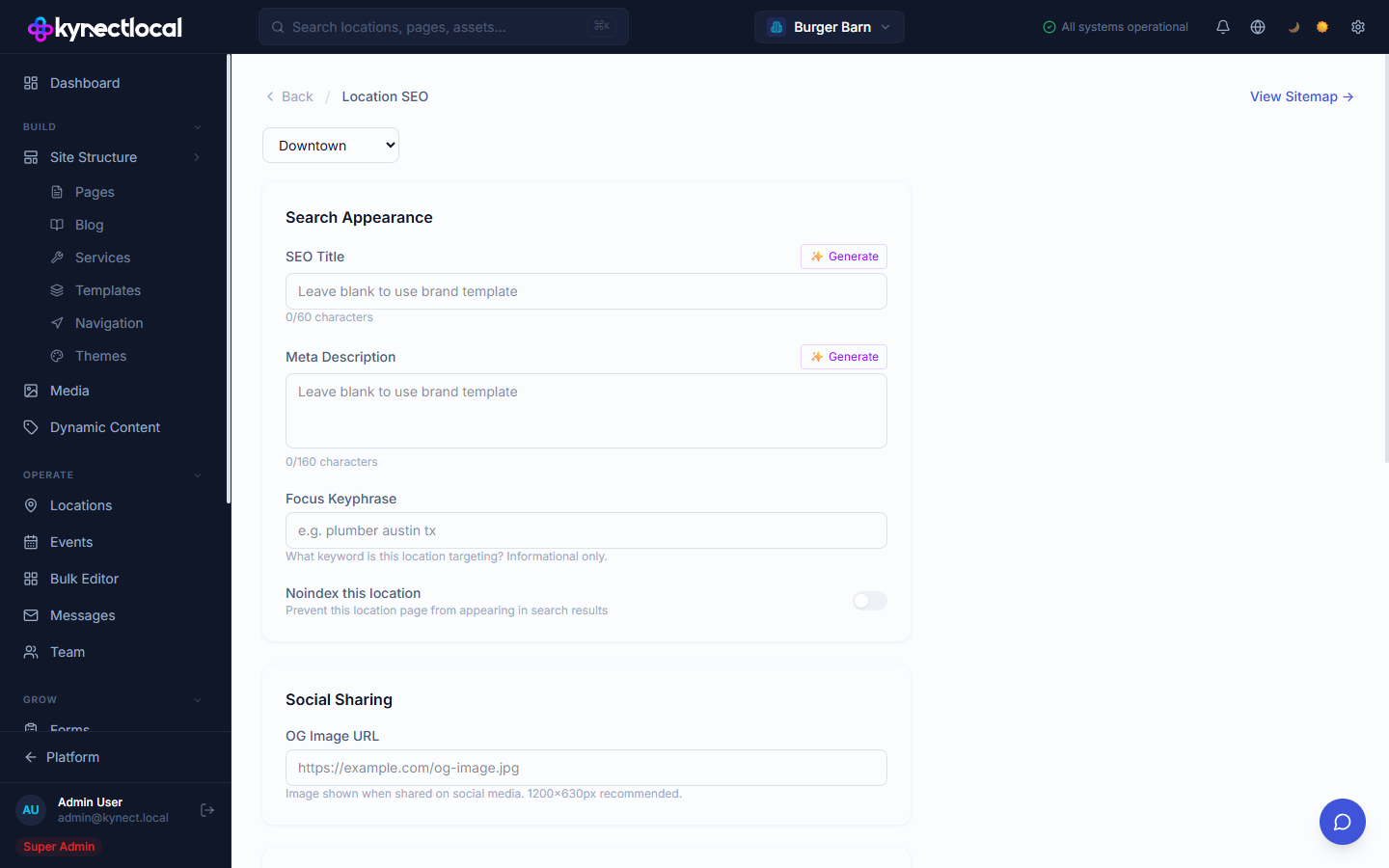
Go to Build → Site Structure → Location SEO (brand admins) or access it from your location’s admin. Select a location from the dropdown at the top, then use the View Sitemap → link in the top right to see the current sitemap for that location.
Search Appearance
Section titled “Search Appearance”| Field | Description |
|---|---|
| SEO Title | The <title> tag shown in search results. Leave blank to use the brand template. Maximum 60 characters. |
| Meta Description | The description snippet shown under your title in search results. Leave blank to use the brand template. Maximum 160 characters. |
| Focus Keyphrase | The primary keyword this location page is targeting. Informational only — does not affect the published page. |
| Noindex this location | Toggle on to prevent this location’s page from appearing in search results. Use for locations that are not yet ready to be indexed. |
Click Generate next to SEO Title or Meta Description to use AI to draft a suggestion based on your location’s data.
Social Sharing
Section titled “Social Sharing”| Field | Description |
|---|---|
| OG Image URL | The image shown when this location’s page is shared on social media. Recommended size: 1200×630px. |
Your Business Listings
Section titled “Your Business Listings”Add external business profile links for this location. These help search engines connect the location page to your listings on other platforms.
| Field | Platform |
|---|---|
| Google Business Profile URL | Google Business |
| Facebook Page URL | |
| Yelp Business URL | Yelp |
| Instagram URL | |
| Twitter / X URL | Twitter / X |
AI Search Readiness
Section titled “AI Search Readiness”Below the business listings form, the AI Search Readiness checklist shows a set of pass/fail items that affect how AI search engines — Google AI Overviews, Perplexity, and ChatGPT Browse — understand and feature this location.
Each item is either passing (green checkmark) or failing (red X). Failing items include a direct action link that takes you to the place in the admin where you can fix it.
Items checked:
| Item | What it checks |
|---|---|
| Reviews connected | At least one reviews integration is connected — required for AggregateRating schema to appear in search |
| FAQ content | At least one FAQ has been added for this location (see FAQ Builder below) |
| Hours complete | Business hours are set for this location |
| Geo coordinates | Latitude and longitude are present on the location profile |
| Social links | At least one social link is set on this location |
| Blog posts published | At least one blog post is live for this brand |
| Focus keyphrase set | A focus keyphrase has been entered for this location’s SEO settings |
Items are not weighted or scored — they are simple pass/fail. Fixing any failing item improves how well AI crawlers can understand and represent this location.
FAQ Builder
Section titled “FAQ Builder”Below the AI Search Readiness checklist, the FAQ Builder lets you add Q&A pairs for this location. Each FAQ is published as FAQPage JSON-LD structured data on the location page.
Click + Add FAQ to create a new entry. Fields:
| Field | Description |
|---|---|
| Question | The question text. Required. |
| Answer | The answer text. Required. |
| Page | Optional. Target a specific page slug (e.g. /services/yoga) rather than all location pages. Leave blank to apply to all location pages. |
| Active | Toggle off to disable the FAQ without deleting it. |
Click the edit icon on any FAQ row to update it, or the delete icon to remove it. Changes take effect on the next page render.
SEO Preview
Section titled “SEO Preview”Below the form, a live preview shows how the location page may appear in Google search results, using the current SEO Title and Meta Description values and the location’s URL slug.
Click Save SEO Settings to apply changes.
Related
Section titled “Related”- Settings — set brand-level SEO defaults and location page templates under Brand Settings → SEO
- Editing Your Site — edit page content and layout for your location
- Service Pages — add service-specific SEO pages for your location
- Reviews — connect a reviews integration to pass the AggregateRating check in AI Search Readiness