
Bulk Editor
The Bulk Location Editor displays all locations in your network as an inline spreadsheet. You can edit any field for any location directly in the table without opening each location’s profile individually.
When you’d use this
Section titled “When you’d use this”- Updating the status of multiple locations at launch
- Correcting phone numbers or addresses across several locations
- Adding taglines or social profile URLs to locations that are missing them
- Spotting locations that have missing or incomplete data (Has errors filter)
The bulk editor
Section titled “The bulk editor”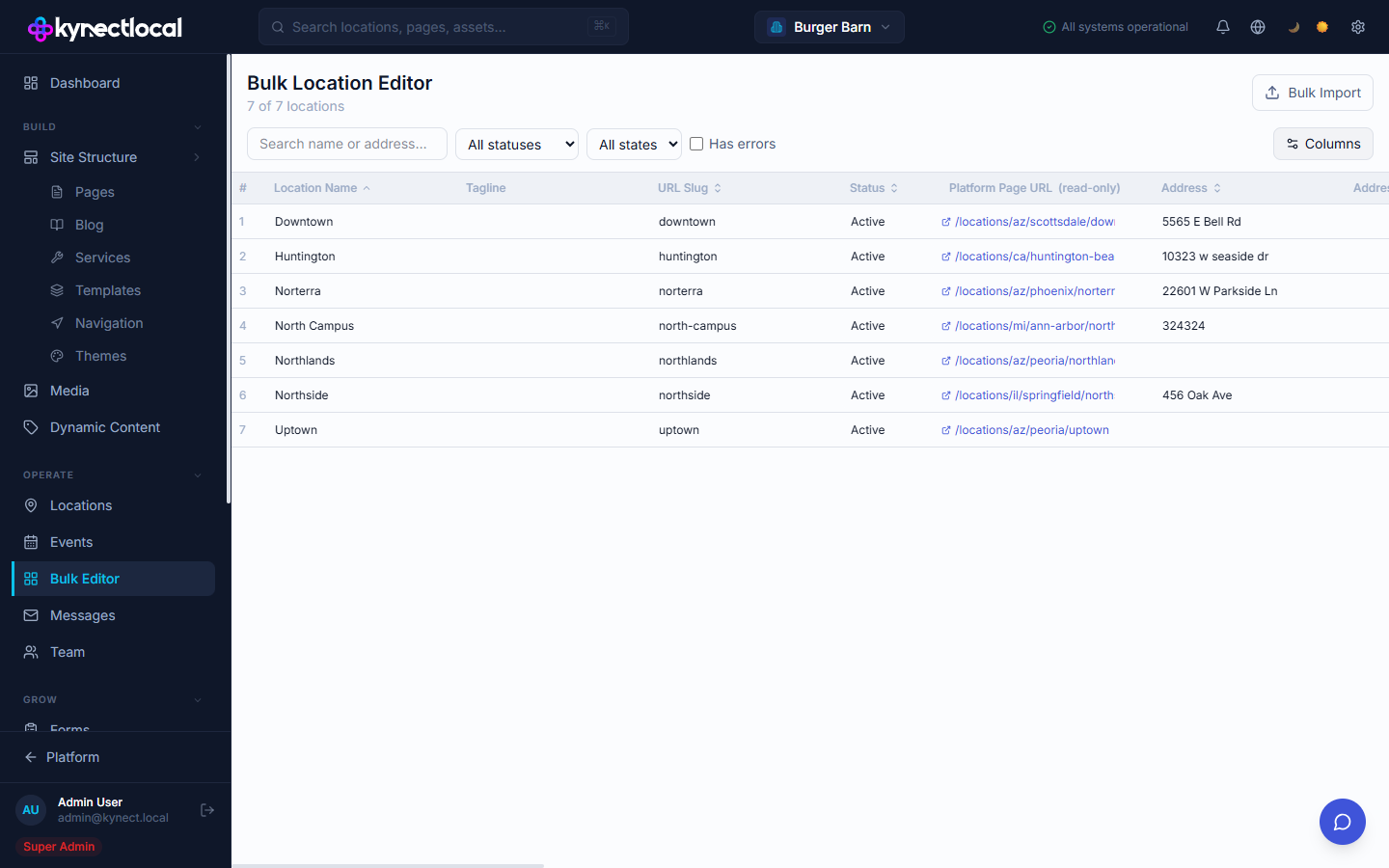
Go to Operate → Bulk Editor. The editor shows all locations as rows with editable columns.
The header shows how many locations are currently displayed (e.g. “7 of 7 locations”).
Filtering locations
Section titled “Filtering locations”| Filter | Description |
|---|---|
| Search | Filter rows by location name or address |
| All statuses | Filter by Active, Onboarding, Coming Soon, or Closed |
| All states | Filter by US state |
| Has errors | Show only locations with validation errors or missing required fields |
Available columns
Section titled “Available columns”Click Columns to toggle which columns appear in the table. All columns except Platform Page URL are editable.
| Column | Notes |
|---|---|
| Location Name | The location’s display name |
| Tagline | Short tagline shown on the location site |
| URL Slug | The location’s URL path segment |
| Status | Dropdown: Active, Onboarding, Coming Soon, Closed |
| Platform Page URL | Read-only. The full URL to this location’s site |
| Address / Address Line 2 | Street address fields |
| City / State / ZIP / Country | Address components |
| Phone | Primary phone number |
| Primary email address | |
| Hours | Business hours summary |
| Google Maps URL | Google Maps link for the location |
| Google Business Profile | GBP URL |
| Facebook / Yelp / Instagram / Twitter / X | Social profile URLs |
| Active Promotion | Assign a promotion to this location |
| Custom Location Tokens | Any Custom Location Tokens defined in Dynamic Content also appear as columns |
Editing cells
Section titled “Editing cells”Click any editable cell to activate it. Text fields become text inputs. Status cells show a dropdown. Changes are saved per-cell — there is no separate Save button.
Bulk Import
Section titled “Bulk Import”Click Bulk Import in the top right to import location data from a CSV file. Contact support@kynectlocal.com for the import format and template.
Related
Section titled “Related”- Locations — edit a single location’s full profile in detail
- Dynamic Content — Custom Location Token columns appear automatically in the Bulk Editor