
Service Pages
Service pages are per-location pages generated automatically when you add a service to a location. Each service gets its own URL and SEO page, built from the brand’s Standard Service template. Adding more services means more indexed pages for that location.
When you’d use this
Section titled “When you’d use this”- Adding the services your location offers so each gets its own SEO page
- Disabling a service to unpublish its page without deleting it
- Viewing or editing the template that all service pages are built from
The Services page
Section titled “The Services page”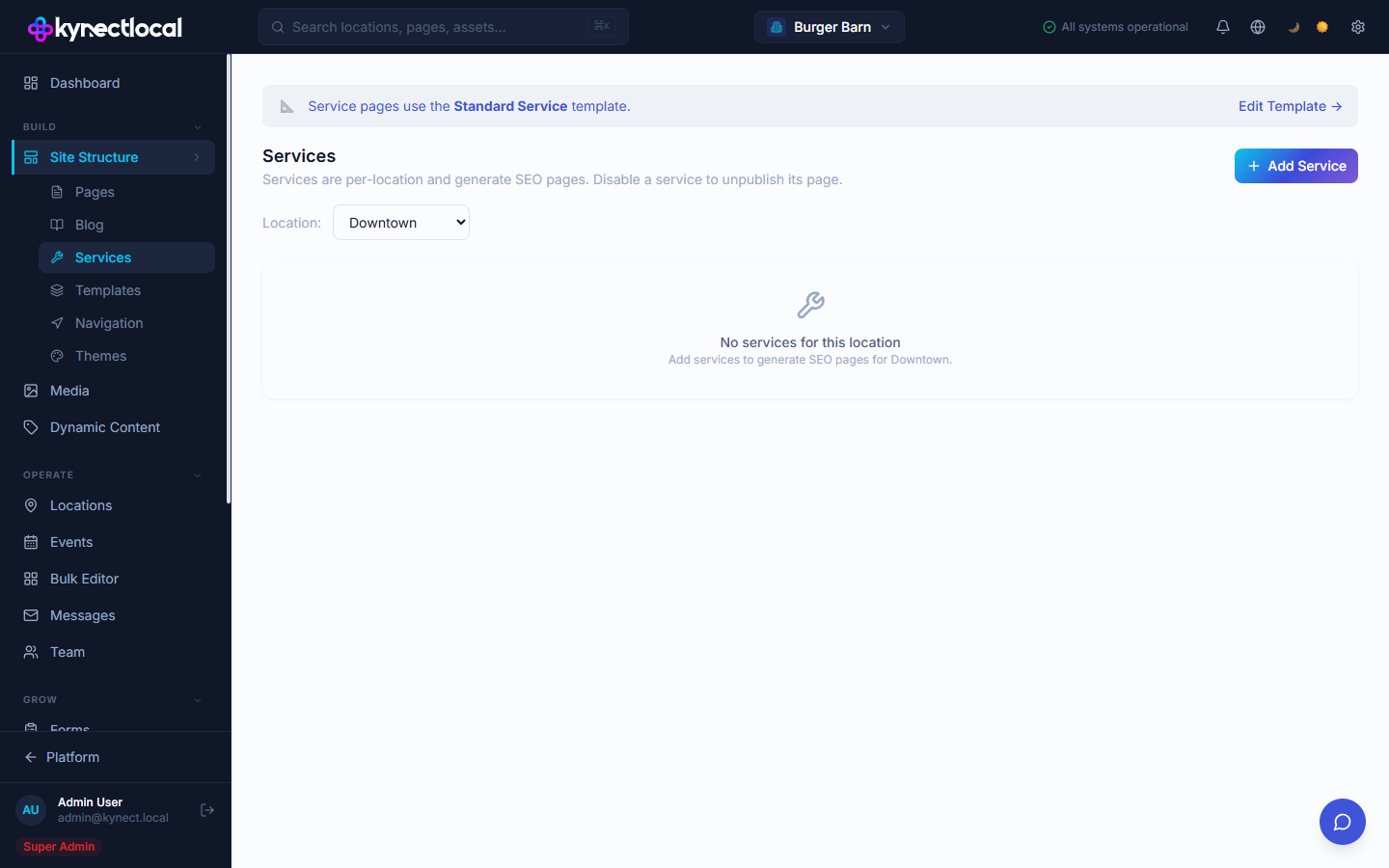
Go to Build → Services. A banner at the top shows which template service pages use (Standard Service). Click Edit Template → to open the template editor for that page layout.
Use the Location dropdown to switch between locations. The service list updates to show only that location’s services.
Adding a service
Section titled “Adding a service”- Select the location from the Location dropdown.
- Click + Add Service.
- In the New Service form that appears:
- Name — the service name (e.g. “Oil Change”, “Deep Tissue Massage”). This becomes the page title and URL slug.
- Description (optional) — a brief description of the service. Click Generate to have AI draft one based on the service name.
- Click Add to create the service and publish its page.
Each service added generates a dedicated page at a URL based on the location’s slug and the service name.
Managing services
Section titled “Managing services”Once services are added, each row in the list shows the service name and a toggle to enable or disable the page:
- Enabled — the service page is live and indexed
- Disabled — the page is unpublished without deleting the service record
To remove a service permanently, delete it from the list. Its page will be unpublished.
The Standard Service template
Section titled “The Standard Service template”All service pages are built from the Standard Service template. This template controls the layout — heading, description block, CTA section, and any shared content — applied uniformly across all service pages in the network.
Brand admins can edit this template by clicking Edit Template → on the Services page. Changes to the template propagate to all service pages across all locations.
Related
Section titled “Related”- Local SEO — set SEO title and meta description overrides for your location’s main page
- Editing Your Site — edit other pages on your location site
- Templates — manage the Standard Service and other page templates at the brand level
- Service Pages (Brand) — brand-level view of services across all locations