
Managing Forms
Forms on your location pages — contact forms, booking requests, and similar — send submissions to an email address you control. You can update that address at any time. If Mailchimp is connected, you can also route submissions from each form to a specific Mailchimp audience.
When you’d use this
Section titled “When you’d use this”- Routing form submissions to a new staff member or shared inbox
- Adding a second email address to receive copies of submissions
- Fixing a submission address that is bouncing or out of date
- Selecting which Mailchimp audience a form should push leads to
Updating your notification email
Section titled “Updating your notification email”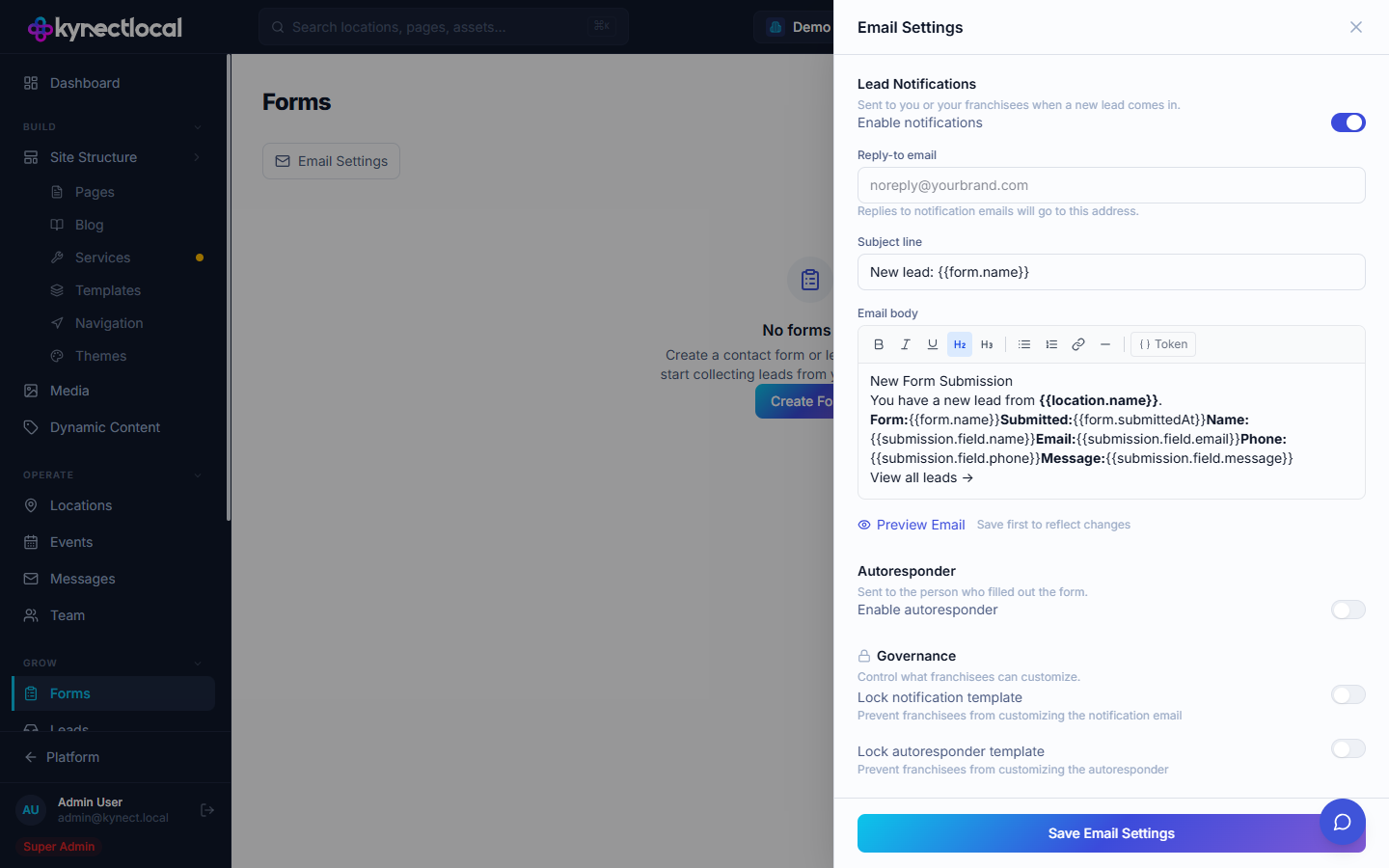
- Go to your location dashboard and click Settings → Notifications.
- Enter the email address that should receive form submissions.
- To send submissions to more than one address, separate them with commas.
- Click Save.
Changes take effect immediately — the next form submission goes to the updated address.
Mailchimp audience selection
Section titled “Mailchimp audience selection”If your brand has Mailchimp connected (or you have set up your own Mailchimp account on the My Integrations page), you can choose which Mailchimp audience each form routes submissions to.
- Click Edit on a form.
- Scroll to Mailchimp Integration and toggle it on.
- Select an audience from the Audience / List dropdown. The dropdown shows all audiences from your connected Mailchimp account.
- Map each form field to a Mailchimp merge tag in the Field Mapping table.
- Click Save Form.
Each form can route to a different audience — a “Contact Us” form and a “Newsletter Signup” form can push to different Mailchimp lists.
What you cannot change
Section titled “What you cannot change”The structure and fields of your forms — question labels, required fields, form layout — are set by your brand admin. If you need a form field added, removed, or relabelled, contact your brand admin.
Related
Section titled “Related”- My Integrations — add your own Mailchimp API key for dual-push to your location’s account
- Editing Your Site — editing page content and your business profile
- Logging In — getting back to your dashboard