
Media
The Media library is a centralized asset store for your franchise network. It holds brand-uploaded files in the corporate library and franchisee-uploaded files organized by location. Brand admins can approve or reject assets that franchisees submit.
When you’d use this
Section titled “When you’d use this”- Uploading brand-approved logos, hero images, or marketing assets for franchisees to use
- Reviewing and approving images that franchisees have uploaded at their locations
- Finding an asset uploaded by a specific location
The media library
Section titled “The media library”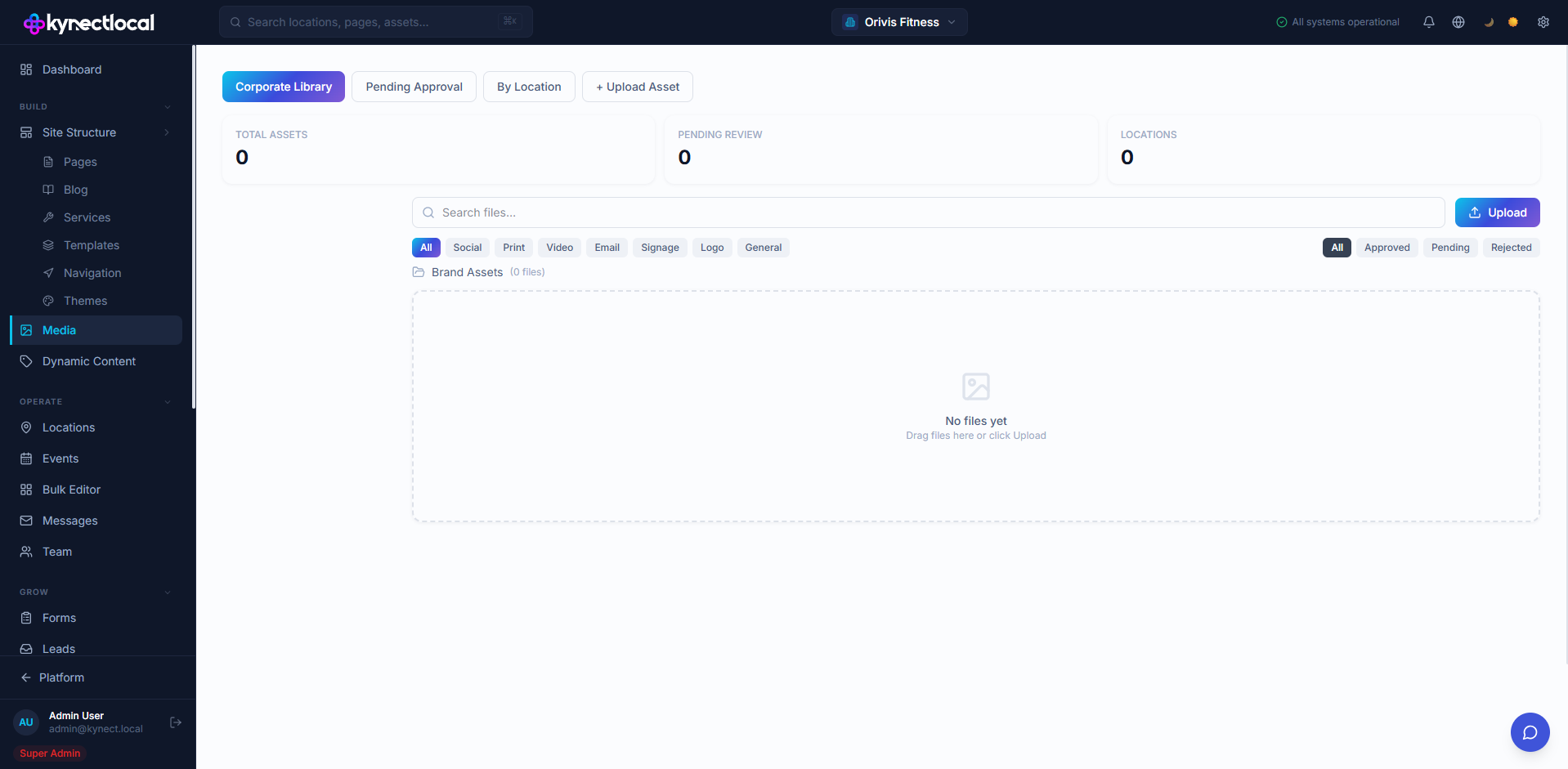
Go to Build → Media to access the library. The page has four tabs:
| Tab | What it shows |
|---|---|
| Corporate Library | Brand-managed assets and all location libraries |
| Pending Approval | Assets uploaded by franchisees awaiting brand review |
| By Location | Assets organized by location |
| + Upload Asset | Upload new files to the corporate library |
Corporate Library
Section titled “Corporate Library”The Corporate Library tab is the main view. The left sidebar divides assets into two groups:
Global Library — brand-owned assets available across all locations:
- All Files — every asset in the corporate library
- Logos — brand logo files
- Heroes — hero images for pages
- General — miscellaneous brand assets
Location Libraries — each location in your network has its own library section. Click a location name to view only that location’s files.
Filtering assets
Section titled “Filtering assets”In the main grid, use the filter bar to narrow results:
- Type: All, Social, Print, Video, Email, Signage, Logo, General
- Status: All, Approved, Pending, Rejected
Use the search box to find files by name.
Uploading brand assets
Section titled “Uploading brand assets”Click + Upload Asset (tab) or the Upload button in the Corporate Library to add files. Uploaded assets are tagged as corporate (CORP) assets and are immediately available in the library.
Approving franchisee uploads
Section titled “Approving franchisee uploads”When a franchisee uploads an image at their location, it appears in the Pending Approval queue. Go to the Pending Approval tab to review them. Each item shows a thumbnail, filename, file size, and the source (Brand asset or location name).
Click Approve to add the asset to the approved library. Click Reject to decline it. Rejected assets are removed from the pending queue and are not made available for use on the site.
Related
Section titled “Related”- Blog — featured images for blog posts are selected from the media library
- Pages & Content (Puck) — Image blocks pull from the media library
- Locations — each location has its own media library section