
Locations
Locations are the individual franchise outlets in your network. Each location gets its own website, business profile, and content — all governed by the settings you define here.
When you’d use this
Section titled “When you’d use this”- Adding a new franchise location when it opens
- Updating a location’s address, phone number, or hours
- Controlling which business profile fields franchisees can edit
- Changing a location’s status (Active, Coming Soon, Closed)
The locations list
Section titled “The locations list”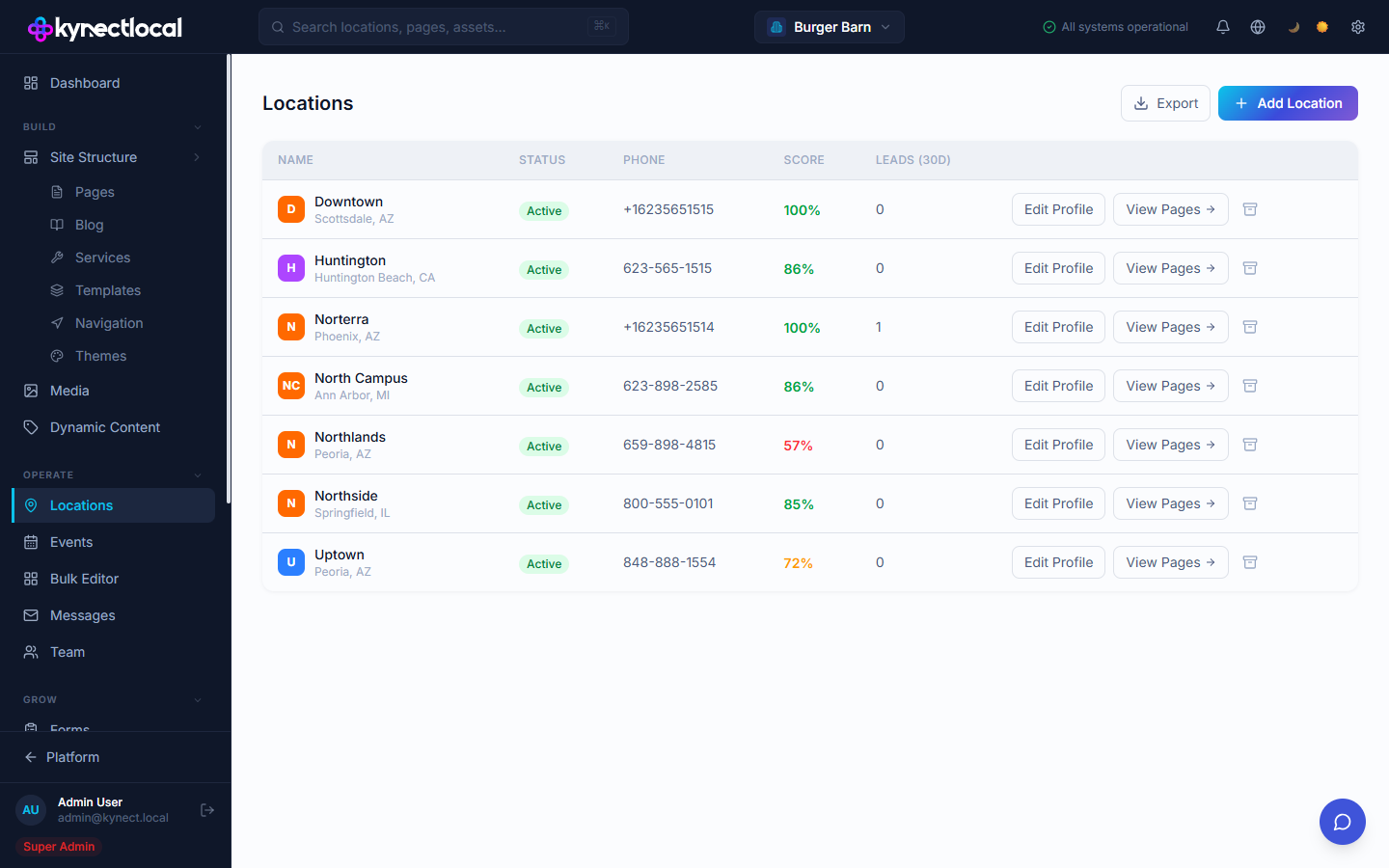
Go to Operate → Locations to see every location in your network. The list shows:
| Column | What it means |
|---|---|
| Name | Location name and city/state |
| Status | Active, Onboarding, Coming Soon, or Closed |
| Phone | Primary contact phone number |
| Score | Profile completeness percentage |
| Leads (30d) | Leads captured through this location’s site in the past 30 days |
Each row has two primary actions: Edit Profile opens the business profile editor, and View Pages opens the location’s page list.
Adding a location
Section titled “Adding a location”- Go to Operate → Locations.
- Click + Add Location.
- Fill in the location’s business profile — at minimum: name, address, and phone number.
- Click Save Profile.
KynectLocal creates the location and generates its website URL based on the location name and your brand’s domain configuration. The site remains in Onboarding status until you set it to Active.
Editing a location’s business profile
Section titled “Editing a location’s business profile”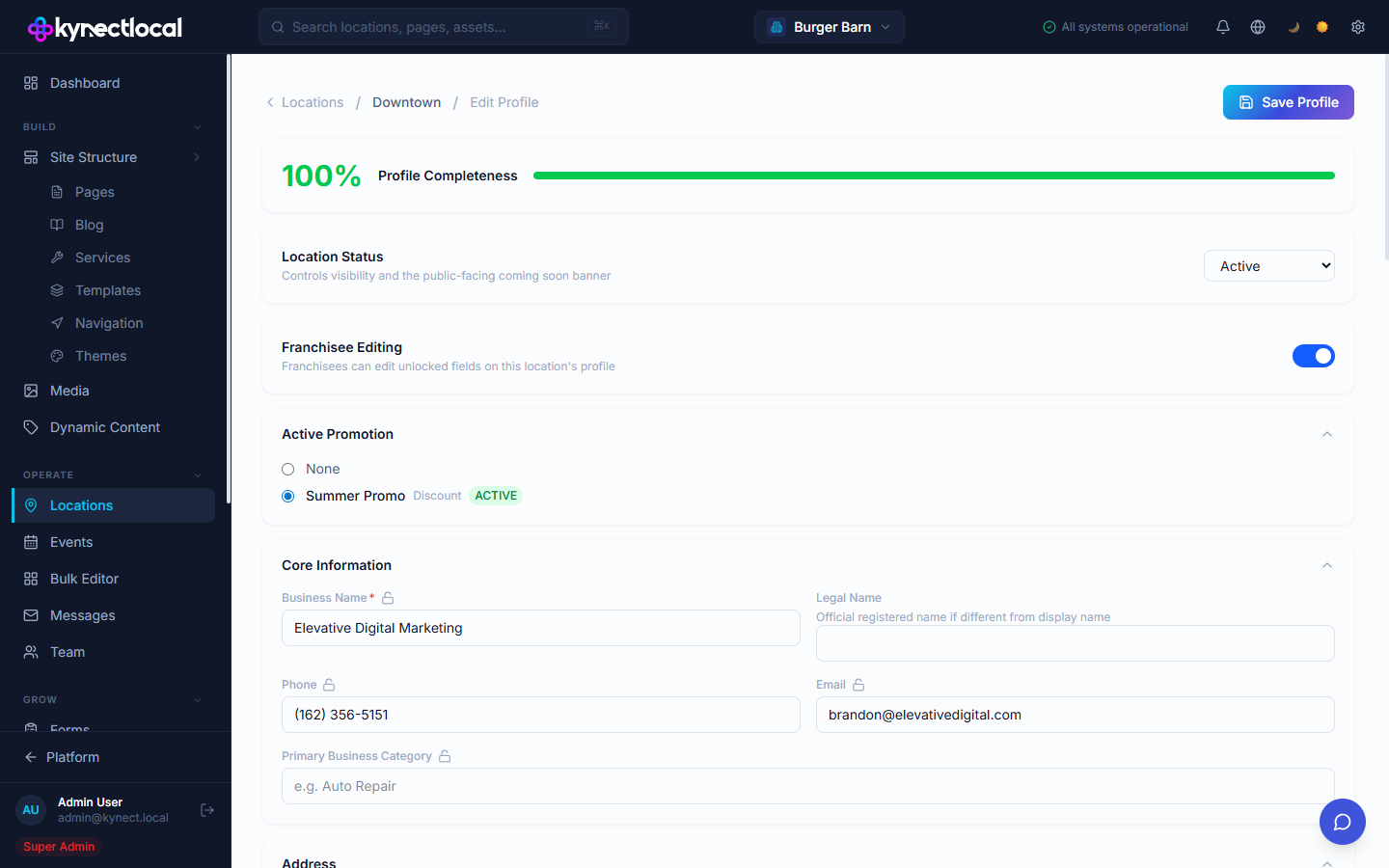
Click Edit Profile on any location row to open its profile editor. The editor is organized into collapsible sections:
- Core Information — business name, legal name, phone, email, primary category
- Address — street, city, state, postal code, country, lat/lng (advanced)
- Business Hours — per-day open/closed/24-hour settings, with split-hour support
- Holiday & Special Hours — date-specific overrides for regular hours
- Business Categories — secondary categories for search and directory listings
- Services — services this location offers
- Social Media & Listings — Google Business Profile, Facebook, Instagram, Yelp, X, LinkedIn, TikTok, YouTube
- Location Tokens — custom content variables scoped to this location
The Profile Completeness meter at the top shows what percentage of fields are filled in. Incomplete profiles affect the location’s Score in the list view.
Click Save Profile when you’re done. Changes appear on the location’s website after the next publish.
Location status
Section titled “Location status”The Location Status dropdown controls the site’s public visibility:
| Status | What visitors see |
|---|---|
| Active | The live location site |
| Onboarding | Coming Soon page (while you set up the location) |
| Coming Soon | Coming Soon page (intentional pre-launch state) |
| Closed | Closed notice on the site |
Controlling what franchisees can edit
Section titled “Controlling what franchisees can edit”Master toggle
Section titled “Master toggle”Each location has a Franchisee Editing toggle near the top of the profile editor. When enabled, franchisees can edit any field you haven’t individually locked. Disabling it prevents franchisees from changing any profile field for that location.
Per-field locks
Section titled “Per-field locks”Every field in the profile editor shows a lock indicator. Fields marked Unlocked — franchisees can edit can be changed by the franchisee assigned to that location. Click the lock icon on any field to lock it — locked fields become read-only for franchisees.
Distribution to external directories
Section titled “Distribution to external directories”Assigning a template to a location
Section titled “Assigning a template to a location”Template assignment is managed from the Build → Site Structure → Templates section, not from the Locations list. See Templates for how to assign a template to one or more locations.
Related
Section titled “Related”- Templates — assign page templates to location sites
- Pages & Content (Puck) — edit the content on location pages
- Bulk Editor — make the same change across many locations at once
- Settings — configure domain and site-level defaults for all locations